Data Visualization in R

EPI 553 | Principles of Statistical Inference II

Muntasir Masum, PhD

2026-04-23

Roadmap

Foundations

  1. Why visualization is a methods topic
  2. The grammar of graphics
  3. Healy’s principles: honesty, clarity, comparison
  4. Holtz’s chart-type decision tree
  5. Scherer’s editorial approach
  6. A worked transformation: same data, four iterations

Modern Techniques

  1. Color, type, and accessibility
  2. gghighlight, animation, interactivity
  3. Distributions, uncertainty, heatmaps
  4. Patchwork, annotation, spatial viz
  5. Visualizing regression models
  6. The #30DayChartChallenge
  7. Building your own reusable theme

Part 1

Why Visualization Is a Methods Topic

Statistics gives us numbers. Visualization makes them mean something.

Three Reasons

  1. Visualization is part of the analysis, not decoration. A scatterplot reveals a non-linear relationship that a correlation coefficient hides. A residual plot exposes a violated assumption that an R-squared celebrates.

  2. Visualization is how findings reach decision-makers. A clinician, journalist, or policymaker will not read your beta coefficients. They will look at your figure. The figure is the one part of the paper that everyone reads.

  3. Visualization is a discipline with its own theory. Bad charts are not just ugly, they are wrong. They make comparisons hard, hide variation, and encode noise as signal.

“Above all else, show the data.” – Edward Tufte

The Same Data, Completely Different Stories

Figure 1: Anscombe’s Quartet: four datasets with identical summary statistics but radically different patterns.

Every analysis you do should begin and end with looking at the data.

Part 2

The Grammar of Graphics

Leland Wilkinson (1999) described a unified framework. Hadley Wickham translated it into ggplot2 (2005).

The Seven Layers

Core structure

  1. Data
    • What data am I plotting?
    • ggplot(data = ...)
  2. Aesthetics
    • Which variables map to x, y, color, size?
    • aes(x, y, color, size)
  3. Geometries
    • What shape do I draw?
    • geom_point(), geom_line(), geom_col()
  4. Facets
    • Do I split into small multiples?
    • facet_wrap() / facet_grid()

Refinement layers

  1. Statistics
    • Do I summarize or transform?
    • stat_*() / geom_smooth()
  2. Coordinates and scales
    • How are axes and scales defined?
    • coord_*() / scale_*()
  3. Theme
    • How does it look?
    • theme_*() / theme()

Think of these as a checklist: data, mapping, marks, splits, summaries, scales, polish.

The genius is composability: to go from a scatterplot to a faceted scatterplot with a smoother, you add layers; you do not start over.

Building a Plot Layer by Layer

Show the code
ggplot(penguins, aes(x = bill_length_mm, y = bill_depth_mm, color = species)) +
  geom_point(alpha = 0.7, size = 2.5) +
  geom_smooth(method = "lm", se = FALSE, linewidth = 1) +
  facet_wrap(~ island) +
  scale_color_manual(values = epi_colors) +
  labs(title = "Bill Dimensions of Palmer Penguins",
       subtitle = "By species and island, with linear trend lines",
       x = "Bill length (mm)", y = "Bill depth (mm)",
       color = "Species")

Figure 2

The ggplot2 Template

Every ggplot follows the same skeleton:

ggplot(data = <DATA>,
       aes(x = <X>, y = <Y>, color = <Z>))
  + geom_<TYPE>(...)
  + facet_wrap(~ <VAR>)
  + scale_<AES>_<TYPE>(...)
  + labs(title = "...", x = "...", y = "...")
  + theme_minimal()
1
Data – what dataset am I plotting?
2
Aesthetics – which variables map to x, y, color, size?
3
Geometry – what shape do I draw?
4
Facets – do I split into small multiples?
5
Scales – how are axes and color legends defined?
6
Labels – title, subtitle, axis labels
7
Theme – how does it look?

You will use this template for every chart in this course and beyond.

Part 3

Kieran Healy’s Principles

Is the chart substantively good? Perceptually good? Aesthetically good?

Substantive Standards

The Rules

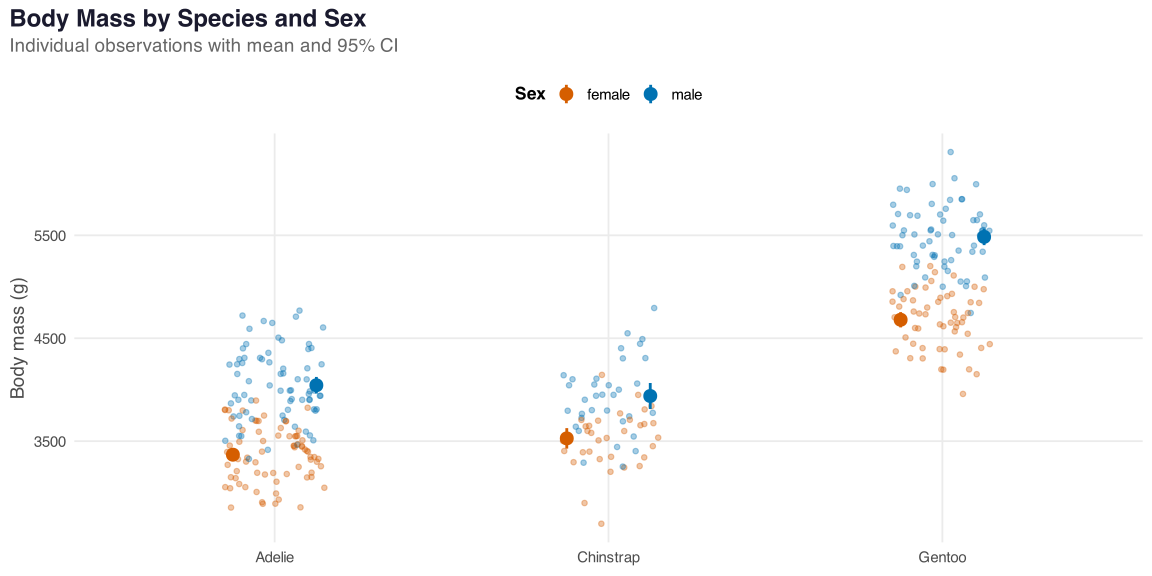
  • Show the data. Individual observations, not just summaries
  • Compare like with like. Stratify intentionally
  • Quantify uncertainty. Always show CIs or standard errors
Figure 3

Perceptual Standards

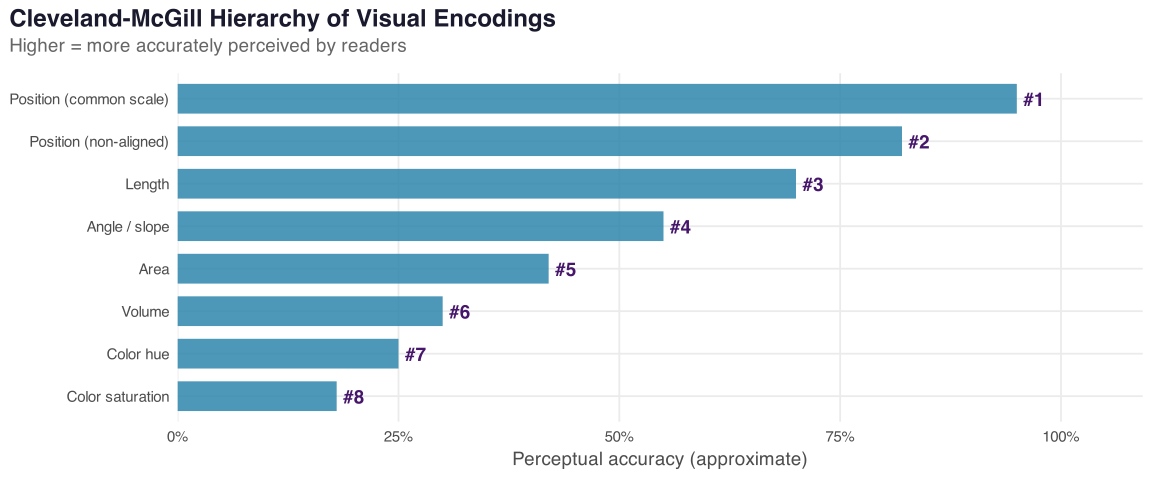
Cleveland & McGill (1984) ranked visual encodings by accuracy:

Figure 4

Practical Implication

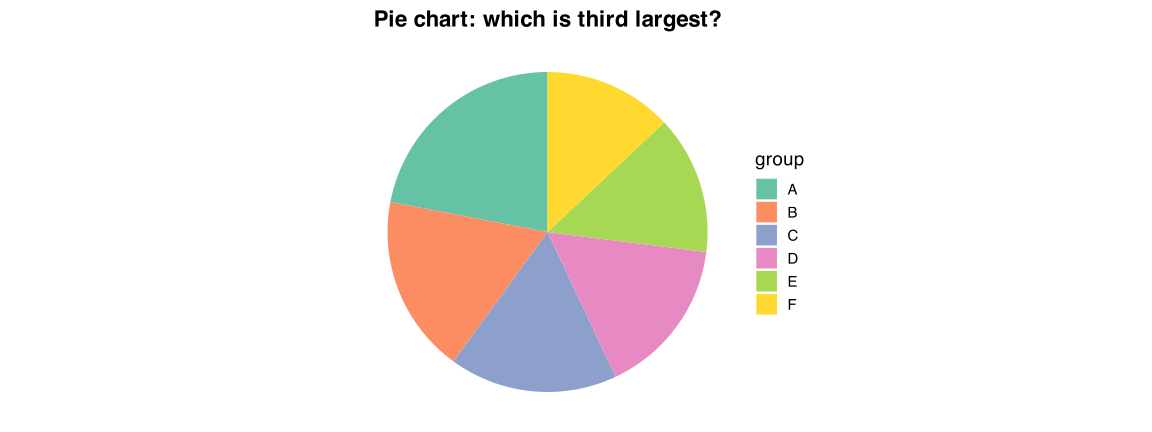
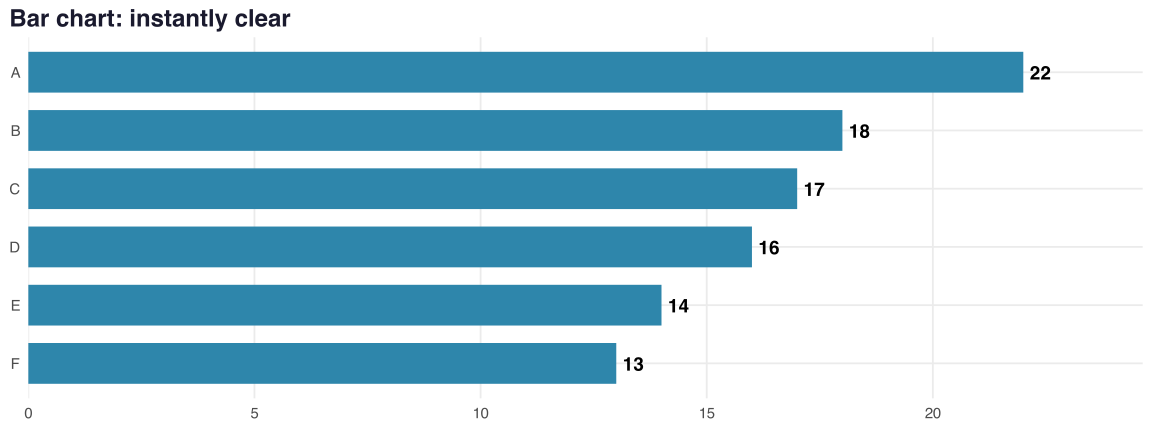
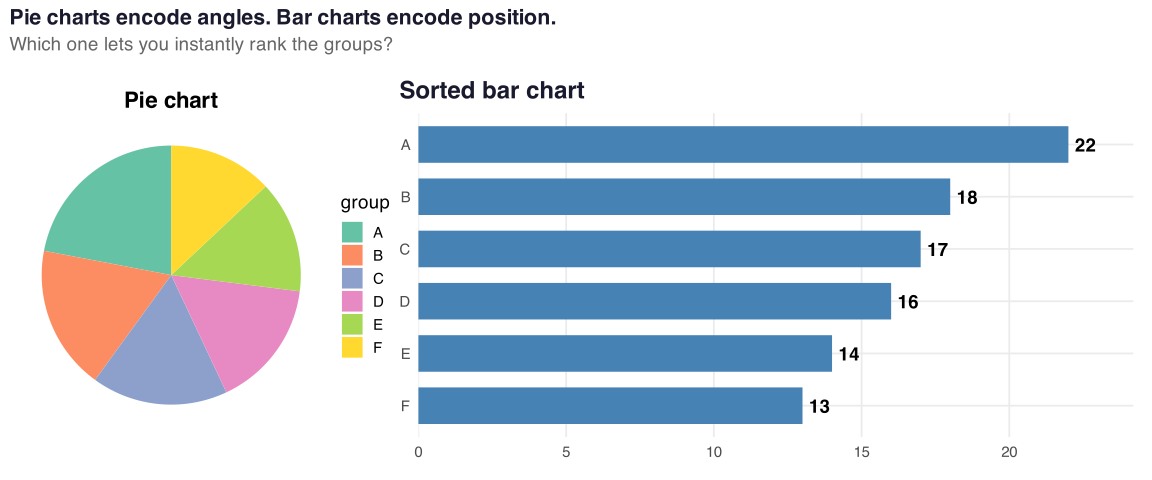
Prefer dot plots and bar charts to pie charts. Prefer faceting to stacking. Use color for categories, not for quantities (unless you use a perceptually uniform scale like viridis).

Weak encoding (angle)

Strong encoding (position)

Aesthetic Standards

Healy’s third pillar is what beginners notice last but readers notice first:

  • Typography: one font family, bold title, grey subtitle, tiny caption
  • White space: let the chart breathe
  • Alignment: consistent margins and axes
  • Color harmony: restrained, purposeful palettes
  • Direct labeling: labels next to the data, not in a legend

A clean theme, restrained gridlines, and direct labeling will make a competent chart feel professional.

Part 4

Choosing the Right Chart Type

Yan Holtz’s From Data to Viz decision tree

Chart Type Decision Guide

Start with the data structure

  • One numeric Histogram, density, boxplot, violin
  • One categorical Bar chart, lollipop, treemap
  • Two numeric Scatterplot, hexbin, 2D density
  • Numeric x categorical Boxplot, violin, ridge, jitter + summary

Then ask what to avoid

  • Two categorical Heatmap or mosaic before grouped bars
  • Time series Prefer line, area, slope; avoid bars by default
  • Map data Normalize before choropleths
  • Network Avoid force-directed hairballs with large node counts

If the audience’s main task is comparison, choose a chart that encodes values by position.

The Anti-Pie-Chart Argument

Show the code
dat <- tibble(group = LETTERS[1:6],
              value = c(22, 18, 17, 16, 14, 13))

p1 <- ggplot(dat, aes(x = "", y = value, fill = group)) +
  geom_col(width = 1) +
  coord_polar("y") +
  scale_fill_brewer(palette = "Set2") +
  labs(title = "Pie chart") +
  theme_void(base_size = 14) +
  theme(plot.title = element_text(face = "bold", hjust = 0.5))

p2 <- ggplot(dat, aes(x = value, y = fct_reorder(group, value))) +
  geom_col(fill = "steelblue", width = 0.7) +
  geom_text(aes(label = value), hjust = -0.3, fontface = "bold") +
  scale_x_continuous(expand = expansion(mult = c(0, 0.1))) +
  labs(title = "Sorted bar chart", x = NULL, y = NULL) +
  theme_epi553()

p1 + p2 +
  plot_annotation(title = "Pie charts encode angles. Bar charts encode position.",
                  subtitle = "Which one lets you instantly rank the groups?",
                  theme = theme(plot.title = element_text(face = "bold", size = 16),
                                plot.subtitle = element_text(color = "grey40")))

Figure 5

Part 5

The Editorial Style

Cedric Scherer’s approach: from default to publication

The Scherer Approach

  1. Start with the data, not the chart type
  2. Strip ruthlessly: remove gridlines, grey backgrounds, redundant titles
  3. Direct label: put labels next to the lines, not in a legend
  4. Use type as design: bold title, italic subtitle, grey caption
  5. Annotate: callouts, arrows, shaded regions
  6. Iterate: 20+ versions is normal

The Tools

Package Purpose
ggtext Markdown in titles
patchwork Multi-panel figures
ggrepel Non-overlapping labels
showtext Custom Google Fonts
MetBrewer Art-inspired palettes
ggdist Uncertainty + distributions

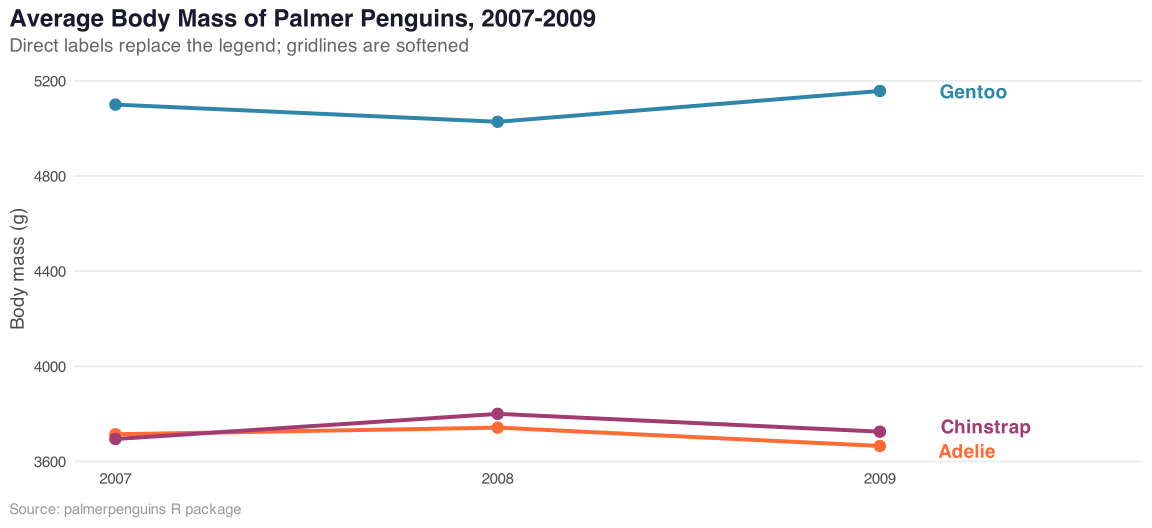
Editorial Example: Direct Labels Replace Legends

Show the ggplot2 code
library(ggrepel)

penguin_means <- penguins |>
  drop_na() |>
  summarise(mass = mean(body_mass_g), .by = c(species, year))

ggplot(penguin_means, aes(x = year, y = mass, color = species)) +
  geom_line(linewidth = 1.4) +
  geom_point(size = 3.5) +
  geom_text_repel(
    data = filter(penguin_means, year == max(year)),
    aes(label = species),
    hjust = 0, nudge_x = 0.15, direction = "y",
    segment.color = NA, fontface = "bold", size = 5
  ) +
  scale_color_manual(values = epi_colors) +
  scale_x_continuous(breaks = 2007:2009,
                     expand = expansion(mult = c(0.05, 0.25))) +
  labs(title = "Average Body Mass of Palmer Penguins, 2007-2009",
       subtitle = "Direct labels replace the legend; gridlines are softened",
       x = NULL, y = "Body mass (g)",
       caption = "Source: palmerpenguins R package") +
  theme(legend.position = "none",
        panel.grid.major.x = element_blank())

Figure 6

Part 6

A Worked Transformation

Same data. Four versions. Watch the evolution.

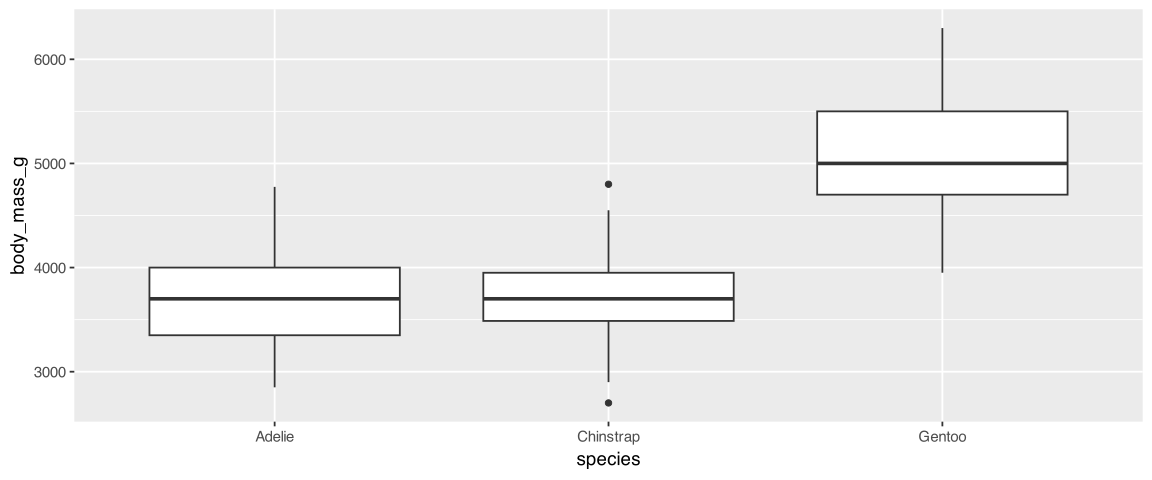
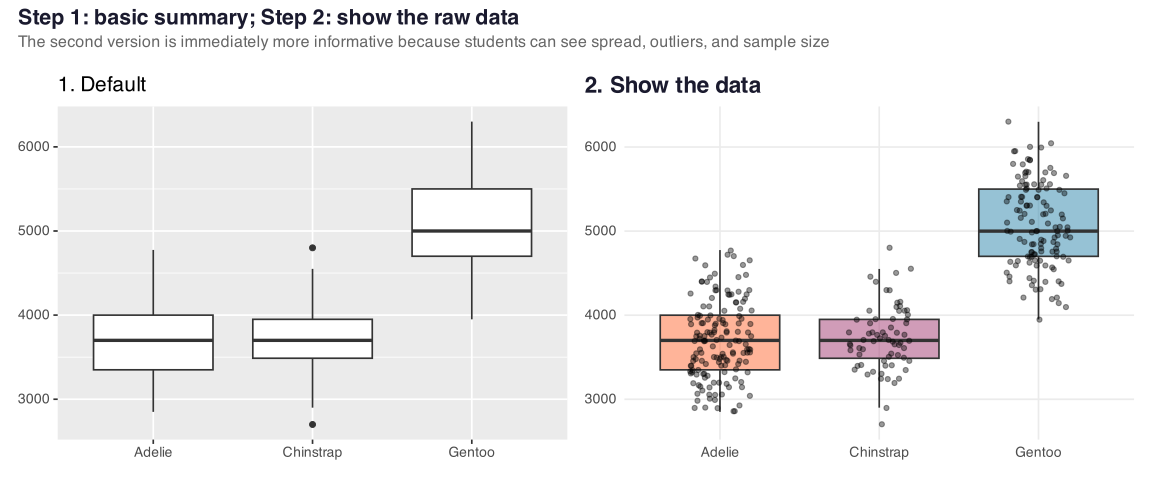
Iteration 1: The Default

ggplot(penguins, aes(x = species, y = body_mass_g)) +
  geom_boxplot() +
  theme_grey(base_size = 14)

Figure 7

Honest. Also forgettable.

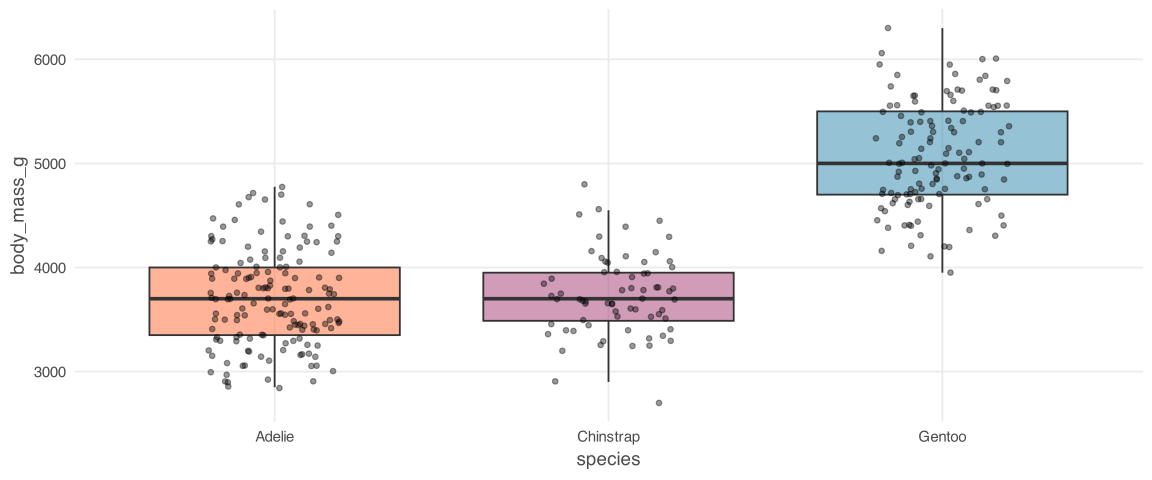
Iteration 2: Show the Data

ggplot(penguins, aes(x = species, y = body_mass_g, fill = species)) +
  geom_boxplot(alpha = 0.5, outlier.shape = NA) +
  geom_jitter(width = 0.2, alpha = 0.4, size = 1.5) +
  scale_fill_manual(values = epi_colors) +
  theme_epi553() +
  theme(legend.position = "none")

Figure 8

Now we see how many penguins are in each species and where the outliers actually live.

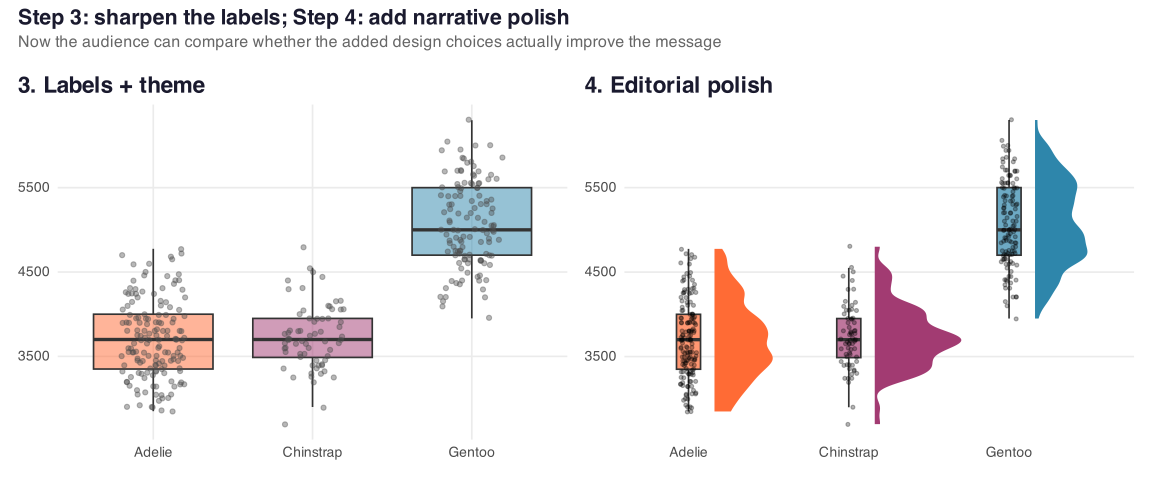
Iteration 3: Labels and Theme

ggplot(penguins, aes(x = species, y = body_mass_g, fill = species)) +
  geom_boxplot(alpha = 0.5, outlier.shape = NA, color = "grey20") +
  geom_jitter(width = 0.2, alpha = 0.4, color = "grey30", size = 1.5) +
  scale_fill_manual(values = epi_colors) +
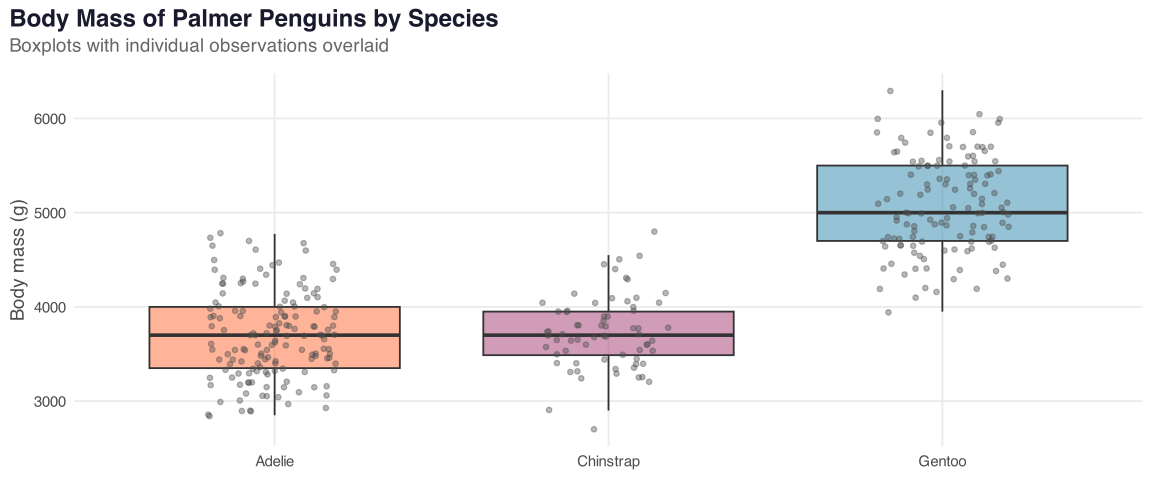
  labs(title = "Body Mass of Palmer Penguins by Species",
       subtitle = "Boxplots with individual observations overlaid",
       x = NULL, y = "Body mass (g)") +
  theme(legend.position = "none")

Figure 9

Iteration 4: Editorial Polish

Show the code
library(ggdist)

ggplot(drop_na(penguins, body_mass_g),
       aes(x = species, y = body_mass_g, fill = species)) +
  stat_halfeye(adjust = 0.5, width = 0.6, .width = 0,
               justification = -0.3, point_color = NA) +
  geom_boxplot(width = 0.15, outlier.shape = NA, alpha = 0.7) +
  geom_jitter(width = 0.05, alpha = 0.3, size = 1.2) +
  scale_fill_manual(values = epi_colors) +
  coord_cartesian(xlim = c(1.2, NA), clip = "off") +
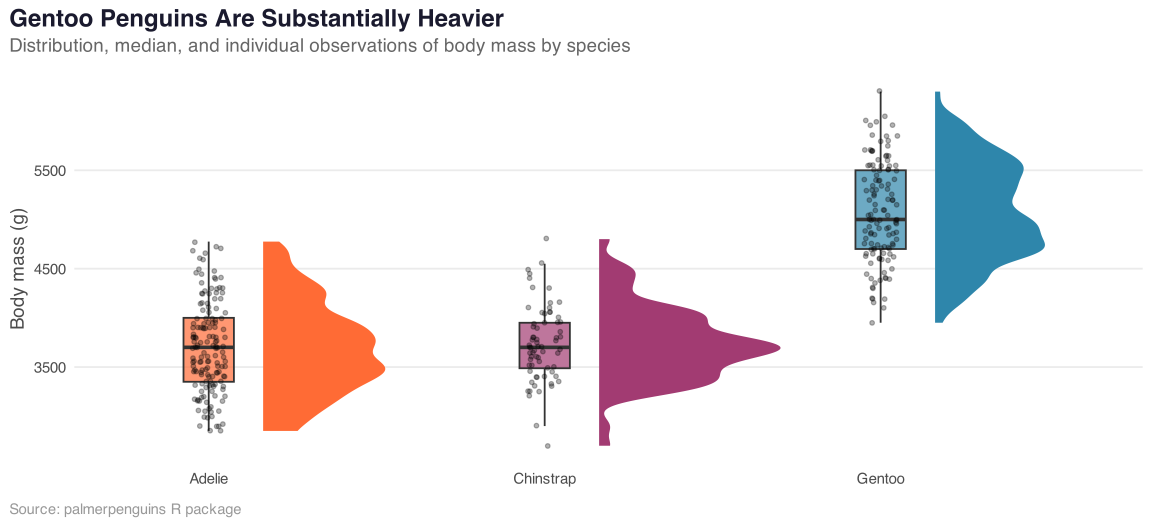
  labs(title = "Gentoo Penguins Are Substantially Heavier",
       subtitle = "Distribution, median, and individual observations of body mass by species",
       x = NULL, y = "Body mass (g)",
       caption = "Source: palmerpenguins R package") +
  theme(legend.position = "none",
        panel.grid.major.x = element_blank())

Figure 10

The final chart shows the distribution (raincloud), the summary (boxplot), the raw data (jitter), and a conclusion baked into the title. That is the difference between a chart and a finding.

Iterations 1 and 2: From Default to Honest

Figure 11

Iterations 3 and 4: From Clean to Editorial

Figure 12

Explore These Online

Foundations Summary

  • Build in layers Start with data, mapping, and geometry
  • Show the data Prefer raw observations plus a summary
  • Use strong encodings Position usually beats area and color
  • Quantify uncertainty CIs and distribution displays matter
  • Label directly Reduce legend lookups when you can
  • Strip clutter Remove anything that does not aid comparison
  • Write takeaway titles Titles should state the finding
  • Iterate Your fourth version is often the best one

Part 7

Color, Type, and Accessibility

Choosing color is a design and an ethics decision.

Color Principles

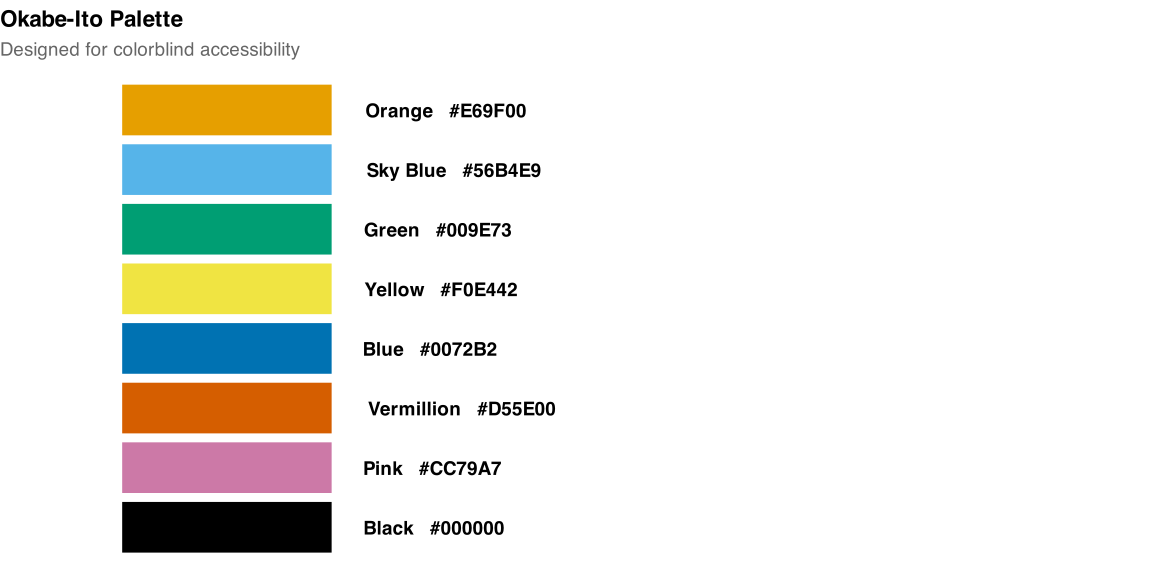
The Four Types of Color Scales

  1. Categorical / Qualitative: distinct hues, no ranking
    • Set2, Dark2, Okabe-Ito
  2. Sequential: light to dark, one or two hues
    • viridis, mako, Blues
  3. Diverging: two hues meeting at a neutral midpoint
    • RdBu, BrBG (only when there is a meaningful zero)
  4. Highlight: one color for the story, grey for context
Figure 13

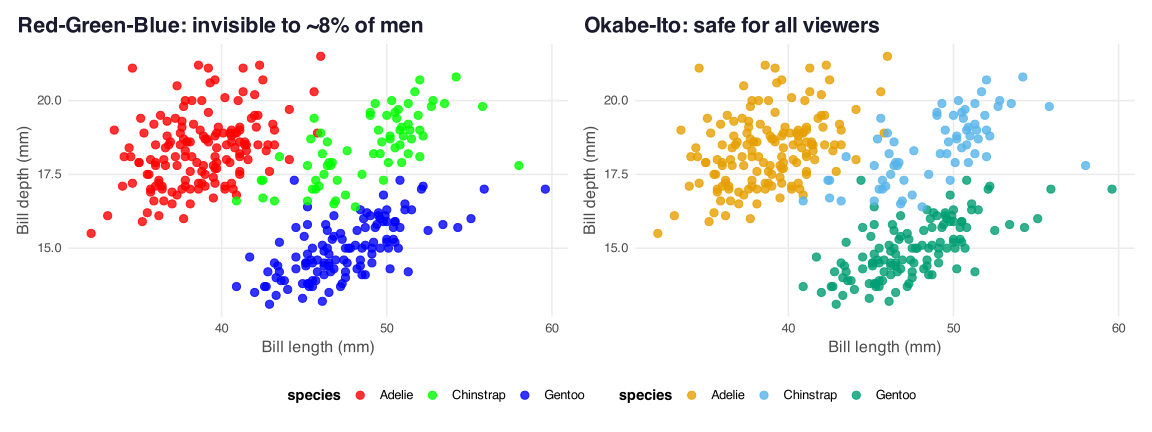
Why Colorblind Safety Matters

About 8% of men and 0.5% of women have some form of color vision deficiency.

Figure 14

Rule of thumb: use viridis-family palettes by default. Check with colorBlindness::cvdPlot() or coblis.com.

Typography and Direct Labeling

Typography Rules

  • One font family consistently
  • Title: bold, slightly larger
  • Subtitle: regular, grey
  • Caption: small, grey, data source
  • Avoid serifs in dense charts
  • Good sans-serifs: Atkinson Hyperlegible, Inter, Source Sans Pro

Direct Labeling

Put the label next to the thing it labels.

Legends force the eye to bounce between chart and key.

Direct labels eliminate that bounce.

# Instead of a legend:
geom_text_repel(
  data = filter(df, year == max(year)),
  aes(label = group)
)

The Visualization Checklist

Before you submit a chart, ask:

  • Does the title state the finding, not the topic?
  • Is the y-axis at zero (for bar charts) or appropriately scaled?
  • Are units labeled?
  • Is there a source caption?
  • Is the color palette colorblind-safe?
  • Are uncertainty intervals shown?
  • Could a reader explain the chart in one sentence?

Part 8

Modern Techniques and Advanced Aesthetics

The “show me what is possible” tour.

8.1 Highlighting with gghighlight

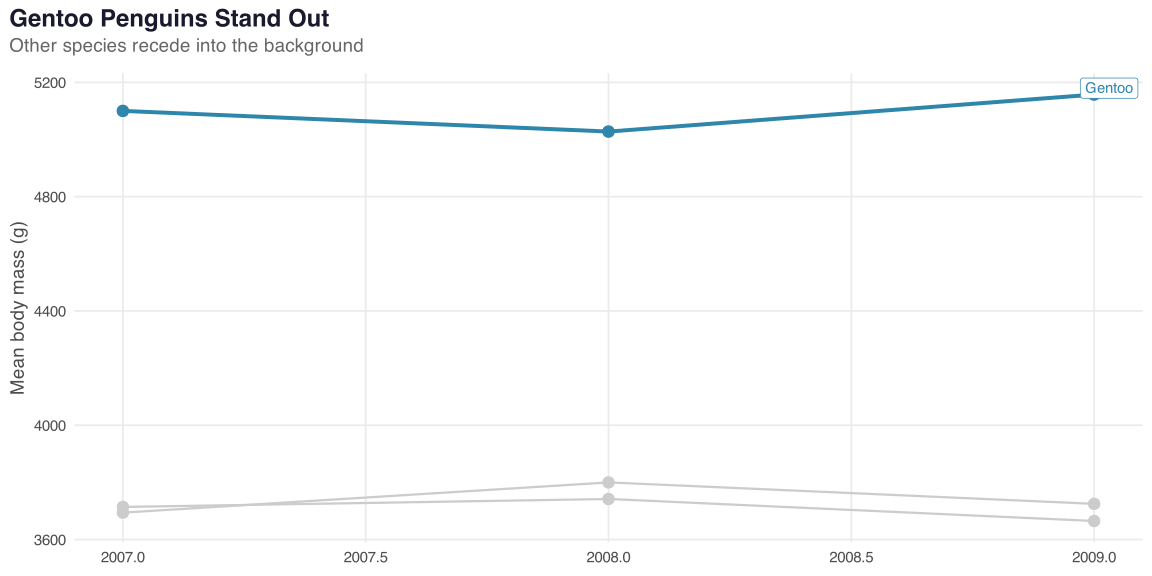
Many groups, but only a few matter to your story. Highlighting fades out the context.

library(gghighlight)

gapminder_like <- penguins |>
  drop_na() |>
  summarise(
    mean_mass = mean(body_mass_g),
    .by = c(species, year)
  )

ggplot(gapminder_like,
       aes(x = year, y = mean_mass,
           color = species)) +
  geom_line(linewidth = 1.4) +
  geom_point(size = 3.5) +
  gghighlight(
    species == "Gentoo",
    unhighlighted_params = list(
      color = "grey80",
      linewidth = 0.8)) +
  scale_color_manual(
    values = c("Gentoo" = "#2E86AB"))
Figure 15

The eye is drawn instantly to the highlighted line, but the reader still has full context.

8.2 Animation with gganimate

Time-series and longitudinal data come alive when animated. Build a standard ggplot, then add a transition_*() layer.

library(gganimate)
library(gapminder)

p <- ggplot(gapminder,
            aes(x = gdpPercap, y = lifeExp, size = pop, color = continent)) +
  geom_point(alpha = 0.7) +
  scale_x_log10() +
  scale_size(range = c(2, 12), guide = "none") +
  scale_color_brewer(palette = "Set2") +
  labs(title = "Year: {frame_time}",
       x = "GDP per capita (log scale)", y = "Life expectancy (years)") +
  theme_epi553() +
  transition_time(year) +        # <-- this is the only new line
  ease_aes("cubic-in-out")

animate(p, nframes = 100, fps = 10, width = 800, height = 500)

Key Transition Functions

Function What it animates Example
transition_time() Continuous variable (year, day) Gapminder bubble chart
transition_states() Discrete variable, pauses on each Before/after comparison
transition_reveal() Progressive reveal along an axis Drawing a time series

Tip from Cedric Scherer: animations should serve a narrative purpose. If the same insight is clearer in a static small-multiple, prefer the static version.

8.3 Interactive Charts

plotly: instant interactivity from any ggplot

library(plotly)

p <- ggplot(penguins, aes(x = bill_length_mm, y = body_mass_g,
                          color = species,
                          text = paste0("Island: ", island,
                                        "<br>Sex: ", sex,
                                        "<br>Year: ", year))) +
  geom_point(alpha = 0.7, size = 2) +
  scale_color_manual(values = epi_colors) +
  labs(x = "Bill length (mm)", y = "Body mass (g)") +
  theme_epi553(base_size = 11)

ggplotly(p, tooltip = "text", height = 400)
Figure 16

8.3 Interactive Charts: ggiraph

ggiraph: finer control, hover effects, click events. Hover over points below!

Show the ggiraph code
library(ggiraph)

p <- ggplot(penguins, aes(x = bill_length_mm, y = body_mass_g, color = species)) +
  geom_point_interactive(
    aes(tooltip = paste("Species:", species, "<br>Island:", island,
                        "<br>Mass:", body_mass_g, "g"),
        data_id = species),
    size = 2.5, alpha = 0.7
  ) +
  scale_color_manual(values = epi_colors) +
  labs(x = "Bill length (mm)", y = "Body mass (g)") +
  theme_epi553(base_size = 11)

girafe(ggobj = p, height_svg = 3.5, width_svg = 8,
       options = list(
         opts_hover(css = "stroke:black;stroke-width:2px;fill-opacity:1;"),
         opts_hover_inv(css = "opacity:0.2;")
       ))
Figure 17

8.4 Distributions: Raincloud Plots

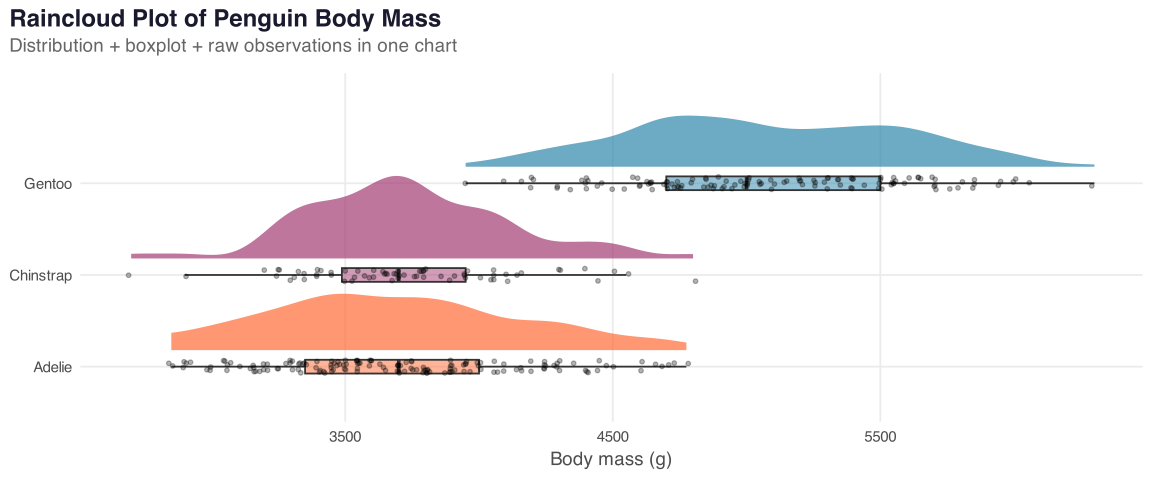
Boxplots hide bimodality. Histograms hide group differences. Raincloud plots show everything.

Show the code
library(ggdist)

ggplot(drop_na(penguins, body_mass_g),
       aes(x = body_mass_g, y = species, fill = species)) +
  stat_halfeye(adjust = 0.6, .width = 0, justification = -0.2,
               point_color = NA, alpha = 0.7) +
  geom_boxplot(width = 0.15, outlier.shape = NA, alpha = 0.5) +
  geom_jitter(height = 0.07, alpha = 0.3, size = 1.2) +
  scale_fill_manual(values = epi_colors) +
  labs(title = "Raincloud Plot of Penguin Body Mass",
       subtitle = "Distribution + boxplot + raw observations in one chart",
       x = "Body mass (g)", y = NULL) +
  theme(legend.position = "none")

Figure 18

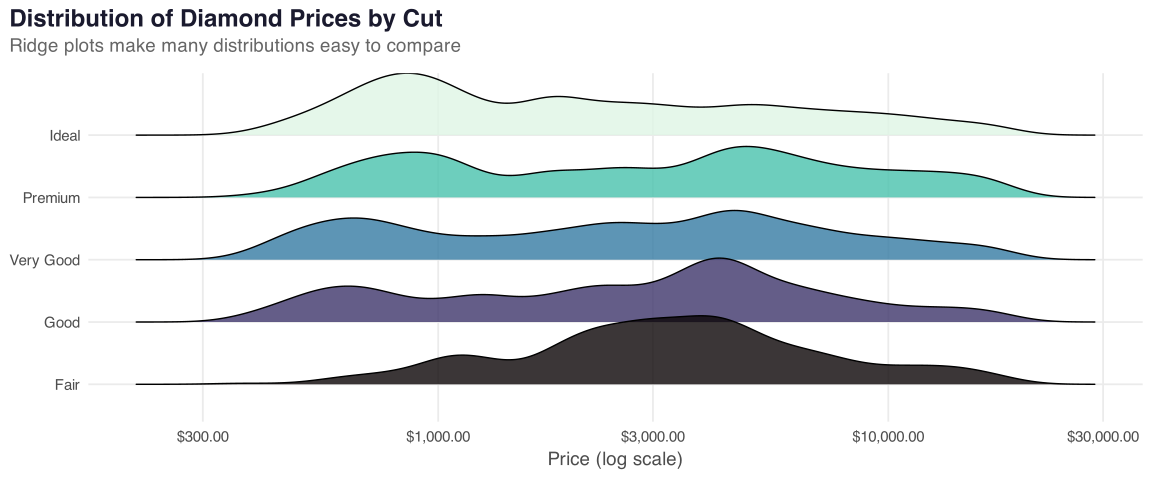
8.4 Distributions: Ridge Plots

When you want to compare distributions across many groups in a small space.

Show the code
library(ggridges)

ggplot(diamonds, aes(x = price, y = cut, fill = cut)) +
  geom_density_ridges(alpha = 0.8, scale = 1.1) +
  scale_x_log10(labels = label_dollar()) +
  scale_fill_viridis_d(option = "mako") +
  labs(title = "Distribution of Diamond Prices by Cut",
       subtitle = "Ridge plots make many distributions easy to compare",
       x = "Price (log scale)", y = NULL) +
  theme(legend.position = "none")

Figure 19

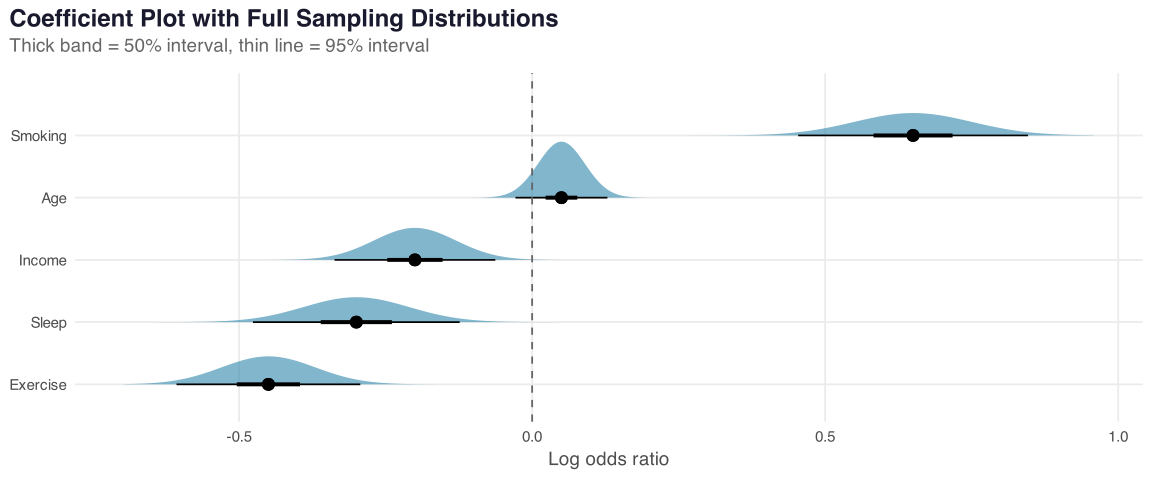
8.5 Uncertainty You Can See

Confidence intervals as skinny error bars often get missed. Show the whole distribution.

Show the code
library(ggdist)
library(distributional)

estimates <- tibble(
  predictor = c("Smoking", "Exercise", "Income", "Sleep", "Age"),
  estimate  = c(0.65, -0.45, -0.20, -0.30, 0.05),
  se        = c(0.10, 0.08, 0.07, 0.09, 0.04)
)

ggplot(estimates, aes(y = fct_reorder(predictor, estimate),
                      xdist = dist_normal(estimate, se))) +
  stat_halfeye(.width = c(0.5, 0.95), fill = "#2E86AB",
               slab_alpha = 0.6, point_size = 3.5) +
  geom_vline(xintercept = 0, linetype = "dashed", color = "grey40") +
  labs(title = "Coefficient Plot with Full Sampling Distributions",
       subtitle = "Thick band = 50% interval, thin line = 95% interval",
       x = "Log odds ratio", y = NULL)

Figure 20

This is far more honest than a forest plot of point estimates with whiskers, because the reader can see the shape of the uncertainty.

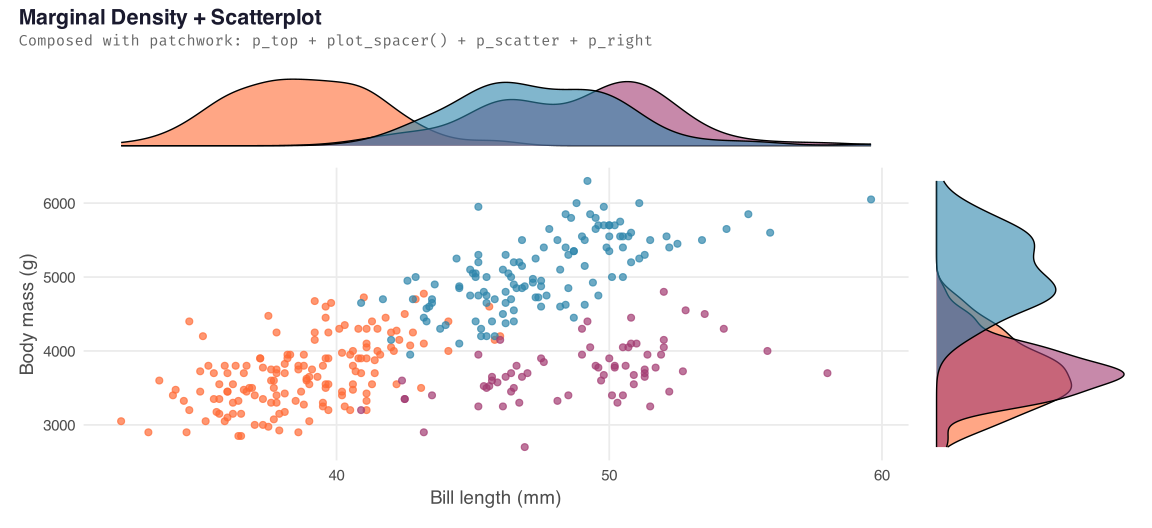
8.6 Patchwork: Composing Multi-Panel Figures

Show the patchwork code
p_scatter <- ggplot(penguins, aes(bill_length_mm, body_mass_g, color = species)) +
  geom_point(alpha = 0.7, size = 2) +
  scale_color_manual(values = epi_colors) +
  theme(legend.position = "none") +
  labs(x = "Bill length (mm)", y = "Body mass (g)")

p_top <- ggplot(penguins, aes(bill_length_mm, fill = species)) +
  geom_density(alpha = 0.6) +
  scale_fill_manual(values = epi_colors) +
  theme_void() + theme(legend.position = "none")

p_right <- ggplot(penguins, aes(body_mass_g, fill = species)) +
  geom_density(alpha = 0.6) +
  scale_fill_manual(values = epi_colors) +
  coord_flip() +
  theme_void() + theme(legend.position = "none")

(p_top + plot_spacer() + p_scatter + p_right +
    plot_layout(ncol = 2, widths = c(4, 1), heights = c(1, 4))) +
  plot_annotation(
    title = "Marginal Density + Scatterplot",
    subtitle = "Composed with patchwork: p_top + plot_spacer() + p_scatter + p_right",
    theme = theme(plot.title = element_text(face = "bold", size = 16),
                  plot.subtitle = element_text(color = "grey40", family = "Fira Code",
                                               size = 11))
  )

Figure 21

Patchwork Syntax Cheat Sheet

The arithmetic is intuitive:

p1 + p2
p1 / p2
(p1 | p2) / p3
p1 + p2 + p3 + plot_layout(ncol = 2)
p1 + plot_annotation(title = "Combined Figure")
1
+ places plots side by side
2
/ stacks plots vertically
3
Parentheses group layouts: two on top, one below
4
plot_layout() controls the grid (rows, columns, widths)
5
plot_annotation() adds a shared title, subtitle, or caption

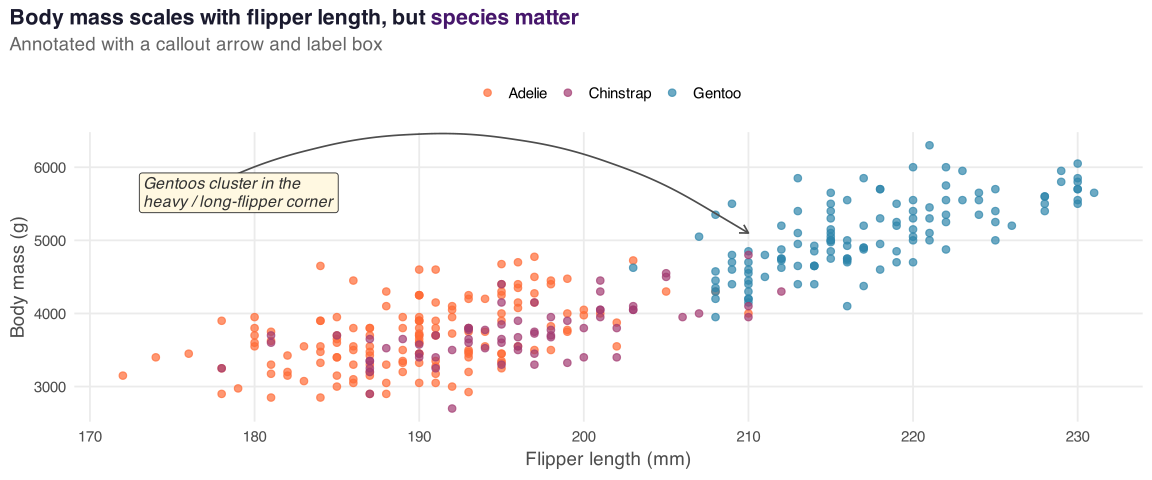
8.7 Annotation as a First-Class Citizen

The fastest way to make a chart “editorial”: annotate the finding directly on the chart.

Show the code
library(ggtext)

ggplot(penguins, aes(x = flipper_length_mm, y = body_mass_g, color = species)) +
  geom_point(alpha = 0.7, size = 2.2) +
  annotate("curve", x = 175, y = 5500, xend = 210, yend = 5100,
           arrow = arrow(length = unit(0.25, "cm")),
           curvature = -0.3, color = "grey30", linewidth = 0.6) +
  annotate("label", x = 173, y = 5650,
           label = "Gentoos cluster in the\nheavy / long-flipper corner",
           hjust = 0, size = 4.2, color = "grey20", lineheight = 0.95,
           fill = "#fff8e1", label.size = 0, fontface = "italic") +
  scale_color_manual(values = epi_colors) +
  labs(title = "Body mass scales with flipper length, but <span style='color:#46166B;'>**species matter**</span>",
       subtitle = "Annotated with a callout arrow and label box",
       x = "Flipper length (mm)", y = "Body mass (g)",
       color = NULL) +
  theme(plot.title = element_markdown(face = "bold", size = 16),
        legend.position = "top")

Figure 22

8.8 Spatial Visualization with sf

Public health data are almost always spatial. The sf package gives ggplot2 first-class support.

Show the spatial code
library(sf)
library(tigris)
options(tigris_use_cache = TRUE)

ny_counties <- counties(state = "NY", cb = TRUE, class = "sf")
ny_counties$fmd_prev <- runif(nrow(ny_counties), 8, 18)

ggplot(ny_counties) +
  geom_sf(aes(fill = fmd_prev), color = "white", linewidth = 0.2) +
  scale_fill_viridis_c(option = "rocket", direction = -1,
                       name = "FMD %") +
  labs(title = "Frequent Mental Distress Prevalence by NY County",
       subtitle = "Hypothetical data for demonstration",
       caption = "Source: U.S. Census Bureau (TIGER/Line)") +
  theme_void(base_size = 14) +
  theme(plot.title = element_text(face = "bold"),
        plot.subtitle = element_text(color = "grey40"))

Figure 23

8.9 Tables as Visualizations: gt + gtExtras

Sometimes the right visualization is a table. gt makes editorial-quality tables with inline plots.

Show the gt code
library(gt)
library(gtExtras)

penguins |>
  drop_na() |>
  summarise(
    n = n(),
    mean_mass = mean(body_mass_g),
    sd_mass = sd(body_mass_g),
    masses = list(body_mass_g),
    .by = species
  ) |>
  gt() |>
  gt_plt_dist(masses, type = "density", fill_color = "#2E86AB") |>
  fmt_number(mean_mass, decimals = 0) |>
  fmt_number(sd_mass, decimals = 0) |>
  cols_label(species = "Species", n = "N",
             mean_mass = "Mean (g)", sd_mass = "SD (g)",
             masses = "Distribution") |>
  tab_header(title = md("**Penguin Body Mass by Species**"),
             subtitle = "Summary statistics with inline density plots") |>
  gt_theme_538() |>
  tab_options(table.width = pct(90))
Table 1
Penguin Body Mass by Species
Summary statistics with inline density plots
Species N Mean (g) SD (g) Distribution
Adelie 146 3,706 459
Gentoo 119 5,092 501
Chinstrap 68 3,733 384

8.10 Heatmaps and Correlation Matrices

Heatmaps turn a matrix of numbers into a pattern you can see. Essential for correlation tables, confusion matrices, and time-by-group summaries.

Show the code
# Correlation matrix of numeric penguin variables
cor_data <- penguins |>
  drop_na() |>
  select(where(is.numeric)) |>
  cor() |>
  as.data.frame() |>
  rownames_to_column("var1") |>
  pivot_longer(-var1, names_to = "var2", values_to = "cor")

ggplot(cor_data, aes(x = var1, y = var2, fill = cor)) +
  geom_tile(color = "white", linewidth = 0.8) +
  geom_text(aes(label = round(cor, 2),
                color = abs(cor) > 0.6),
            size = 4.5, fontface = "bold") +
  scale_fill_gradient2(low = "#D55E00", mid = "white", high = "#0072B2",
                       midpoint = 0, limits = c(-1, 1),
                       name = "Correlation") +
  scale_color_manual(values = c("TRUE" = "white", "FALSE" = "grey20"),
                     guide = "none") +
  scale_x_discrete(labels = \(x) str_replace_all(x, "_", "\n")) +
  scale_y_discrete(labels = \(x) str_replace_all(x, "_", "\n")) +
  labs(title = "Correlation Heatmap of Penguin Measurements",
       subtitle = "Color intensity encodes strength; text encodes exact value",
       x = NULL, y = NULL) +
  coord_fixed() +
  theme(axis.text.x = element_text(angle = 0, hjust = 0.5, size = 10),
        axis.text.y = element_text(size = 10),
        panel.grid = element_blank())

Figure 24

8.11 Dumbbell Charts: Showing Change

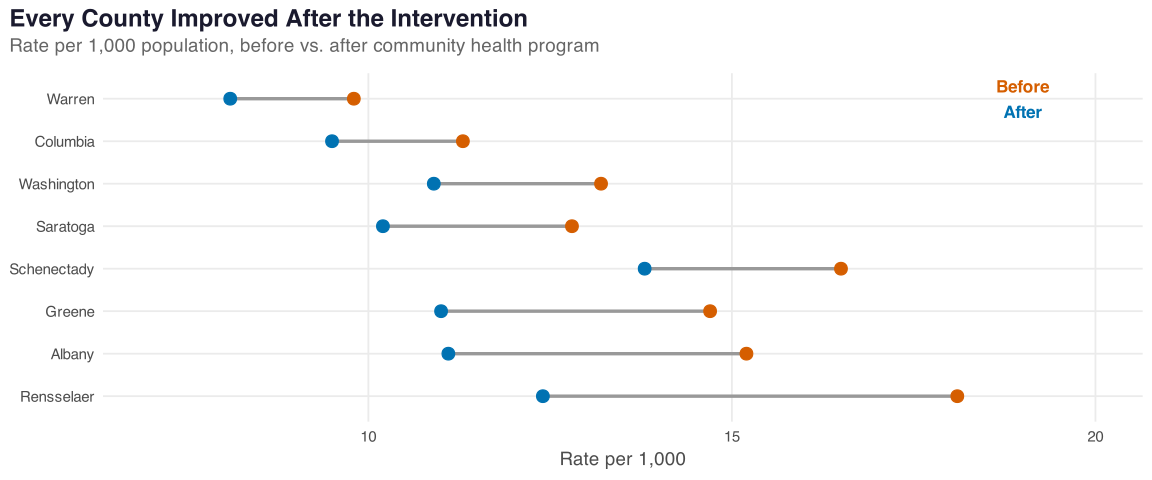
When you need to show the difference between two time points or conditions, dumbbell charts are more effective than grouped bars.

Show the code
# Simulated epi example: disease rates before/after intervention
intervention_data <- tibble(
  county = c("Albany", "Saratoga", "Rensselaer", "Schenectady",
             "Columbia", "Greene", "Warren", "Washington"),
  before = c(15.2, 12.8, 18.1, 16.5, 11.3, 14.7, 9.8, 13.2),
  after  = c(11.1, 10.2, 12.4, 13.8, 9.5, 11.0, 8.1, 10.9)
) |>
  mutate(change = after - before,
         county = fct_reorder(county, change))

ggplot(intervention_data) +
  geom_segment(aes(x = before, xend = after,
                   y = county, yend = county),
               color = "grey60", linewidth = 1.2) +
  geom_point(aes(x = before, y = county), color = "#D55E00",
             size = 4) +
  geom_point(aes(x = after, y = county), color = "#0072B2",
             size = 4) +
  annotate("text", x = 19, y = 8.3, label = "Before",
           color = "#D55E00", fontface = "bold", size = 4.5) +
  annotate("text", x = 19, y = 7.7, label = "After",
           color = "#0072B2", fontface = "bold", size = 4.5) +
  labs(title = "Every County Improved After the Intervention",
       subtitle = "Rate per 1,000 population, before vs. after community health program",
       x = "Rate per 1,000", y = NULL) +
  scale_x_continuous(limits = c(7, 20))
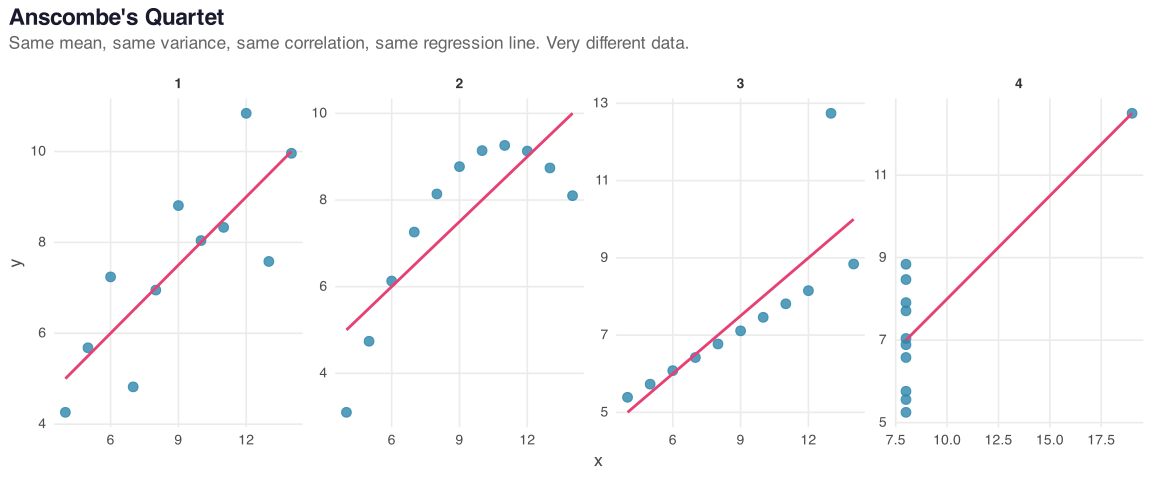
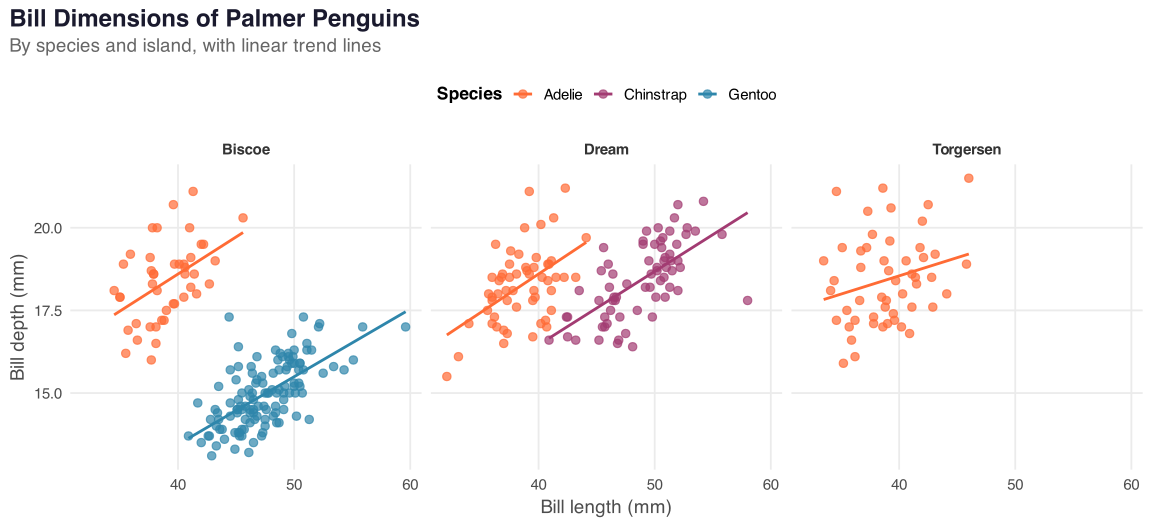
Figure 25

Dumbbell charts encode direction, magnitude, and rank simultaneously. Far more effective than grouped bar charts for before/after comparisons.

8.12 Build Your Own Reusable Theme

Package your style as a function. Reuse it across every chart.

theme_epi553 <- function(base_size = 14) {
  theme_minimal(base_size = base_size) +
    theme(
      plot.title = element_text(face = "bold", size = base_size + 4,
                                color = "#1a1a2e"),
      plot.subtitle = element_text(color = "grey40"),
      plot.caption = element_text(color = "grey60", size = base_size - 3,
                                  hjust = 0),
      panel.grid.minor = element_blank(),
      panel.grid.major = element_line(color = "grey92"),
      axis.title = element_text(color = "grey30"),
      strip.text = element_text(face = "bold"),
      legend.position = "top",
      plot.title.position = "plot",
      plot.caption.position = "plot"
    )
}
1
Wrap as a function so you can reuse it with one call
2
Start from theme_minimal() as a clean base
3
Typography: bold title, muted subtitle and caption
4
Grid cleanup: remove minor gridlines, soften major ones
5
Layout: legend on top, plot-aligned title and caption

Practical tip: drop theme_epi553() into a themes.R file. Source it from every analysis. Consistent figures without effort.

8.13 The Modern Workflow

  1. Sketch first. On paper. What is the story?
  2. Prototype in ggplot2 with default themes. Get the geometry right.
  3. Iterate the encoding. Try three chart types. Pick one.
  4. Layer in annotations. Title is the finding. Direct labels. Callouts.
  5. Polish the theme. Fonts, colors, spacing.
  6. Export at the right resolution.
ggsave("figure_1.png", width = 8, height = 5, dpi = 300, bg = "white")
ggsave("figure_1.svg", width = 8, height = 5)        # vector for editorial
ggsave("figure_1.pdf", width = 8, height = 5,
       device = cairo_pdf)                             # high-quality PDF

Step 7: Show it to a colleague. If they cannot explain the chart in 10 seconds, iterate.

Part 9

Visualizing Regression Models

You have spent the semester building models. Now make them visible.

The Problem with Regression Tables

What reviewers see

A wall of numbers:

Term Estimate SE p
(Intercept) -1.23 0.41 0.003
Smoking 0.65 0.10 <0.001
Exercise -0.45 0.08 <0.001
Income -0.20 0.07 0.004
Sleep -0.30 0.09 0.001
Age 0.05 0.04 0.211

What readers understand

Figure 26

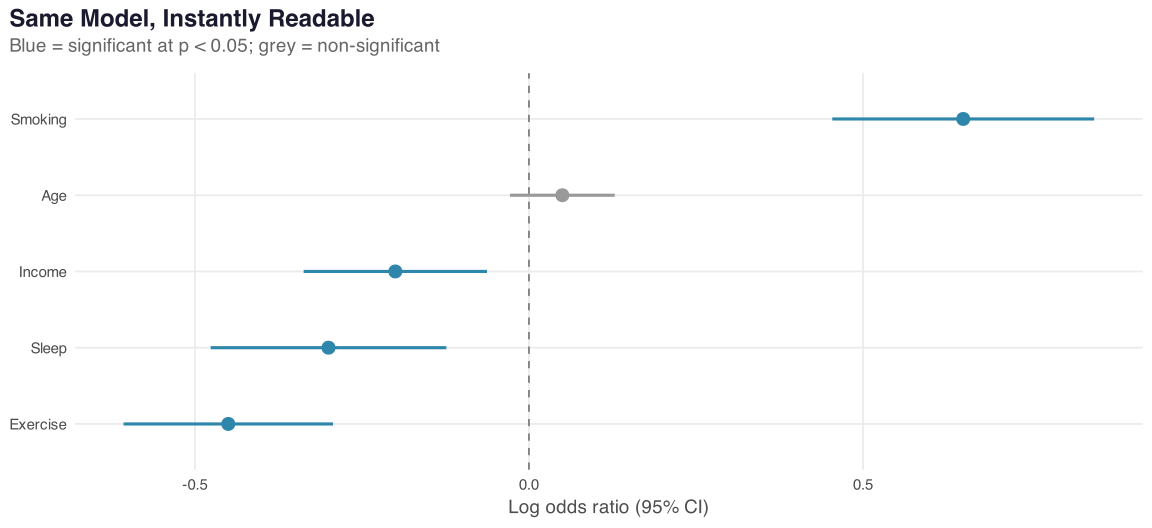
A coefficient plot communicates direction, magnitude, uncertainty, and significance in one glance. A table requires row-by-row mental math.

Forest Plots from Real Models

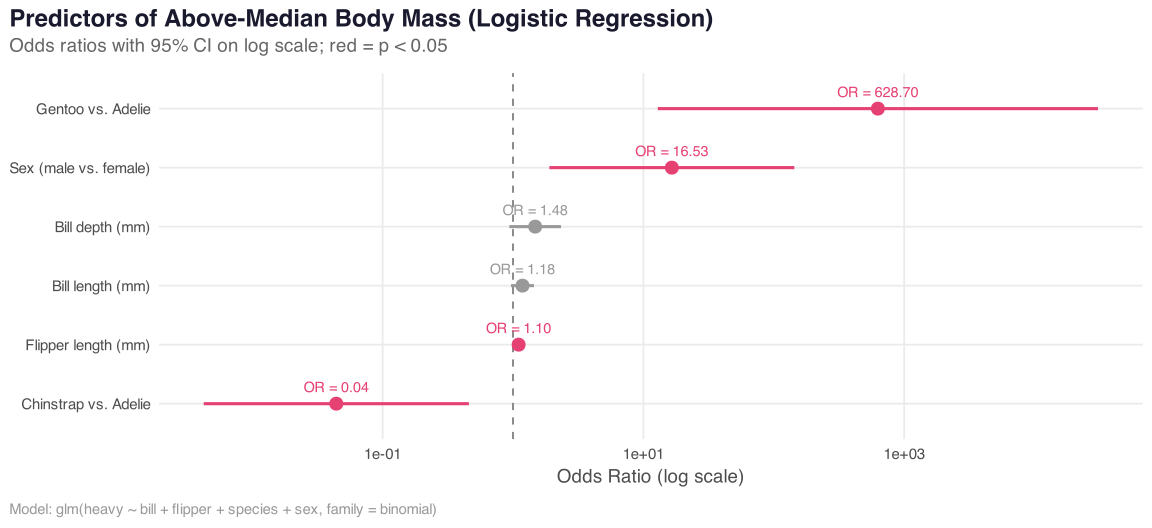
Fit a logistic regression on the penguins data and plot the odds ratios directly.

Show the full code
library(broom)

# Fit a logistic regression: predict heavy penguin (above median mass)
model_data <- penguins |>
  drop_na() |>
  mutate(heavy = as.integer(body_mass_g > median(body_mass_g)))

fit <- glm(heavy ~ bill_length_mm + bill_depth_mm + flipper_length_mm +
             species + sex,
           data = model_data, family = binomial)

# Tidy the model output (use Wald CIs for stability)
model_tidy <- tidy(fit, exponentiate = TRUE) |>
  filter(term != "(Intercept)") |>
  mutate(
    conf.low = exp(log(estimate) - 1.96 * std.error),
    conf.high = exp(log(estimate) + 1.96 * std.error),
    term = case_match(term,
      "bill_length_mm" ~ "Bill length (mm)",
      "bill_depth_mm" ~ "Bill depth (mm)",
      "flipper_length_mm" ~ "Flipper length (mm)",
      "speciesChinstrap" ~ "Chinstrap vs. Adelie",
      "speciesGentoo" ~ "Gentoo vs. Adelie",
      "sexmale" ~ "Sex (male vs. female)"
    ),
    significant = p.value < 0.05
  )

ggplot(model_tidy, aes(x = estimate, y = fct_reorder(term, estimate),
                       color = significant)) +
  geom_vline(xintercept = 1, linetype = "dashed", color = "grey50") +
  geom_pointrange(aes(xmin = conf.low, xmax = conf.high),
                  size = 0.8, linewidth = 1.1) +
  geom_text(aes(label = sprintf("OR = %.2f", estimate)),
            vjust = -1, size = 3.8, show.legend = FALSE) +
  scale_color_manual(values = c("TRUE" = "#e64173", "FALSE" = "grey60"),
                     guide = "none") +
  scale_x_log10() +
  labs(title = "Predictors of Above-Median Body Mass (Logistic Regression)",
       subtitle = "Odds ratios with 95% CI on log scale; red = p < 0.05",
       x = "Odds Ratio (log scale)", y = NULL,
       caption = "Model: glm(heavy ~ bill + flipper + species + sex, family = binomial)")

Figure 27

Predicted Probability Curves

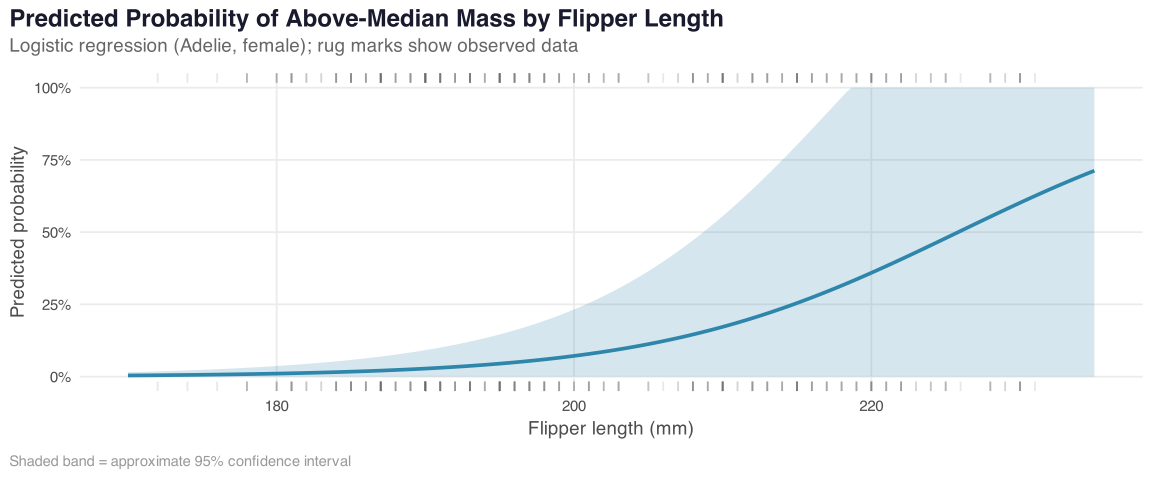
Show what your model predicts across the range of a key variable, holding others at their means.

Show the code
library(broom)

# Generate predictions across flipper length range
pred_grid <- tibble(
  flipper_length_mm = seq(170, 235, length.out = 200),
  bill_length_mm = mean(model_data$bill_length_mm),
  bill_depth_mm = mean(model_data$bill_depth_mm),
  species = "Adelie",
  sex = "female"
)

preds <- augment(fit, newdata = pred_grid, type.predict = "response",
                 se_fit = TRUE) |>
  mutate(lower = pmax(.fitted - 1.96 * .se.fit, 0),
         upper = pmin(.fitted + 1.96 * .se.fit, 1))

ggplot(preds, aes(x = flipper_length_mm, y = .fitted)) +
  geom_ribbon(aes(ymin = lower, ymax = upper),
              fill = "#2E86AB", alpha = 0.2) +
  geom_line(color = "#2E86AB", linewidth = 1.3) +
  geom_rug(data = model_data,
           aes(x = flipper_length_mm, y = heavy),
           sides = "tb", alpha = 0.15, color = "grey40") +
  scale_y_continuous(labels = label_percent()) +
  labs(title = "Predicted Probability of Above-Median Mass by Flipper Length",
       subtitle = "Logistic regression (Adelie, female); rug marks show observed data",
       x = "Flipper length (mm)", y = "Predicted probability",
       caption = "Shaded band = approximate 95% confidence interval")

Figure 28

Predicted probability curves are one of the most effective ways to communicate logistic regression results to non-statisticians.

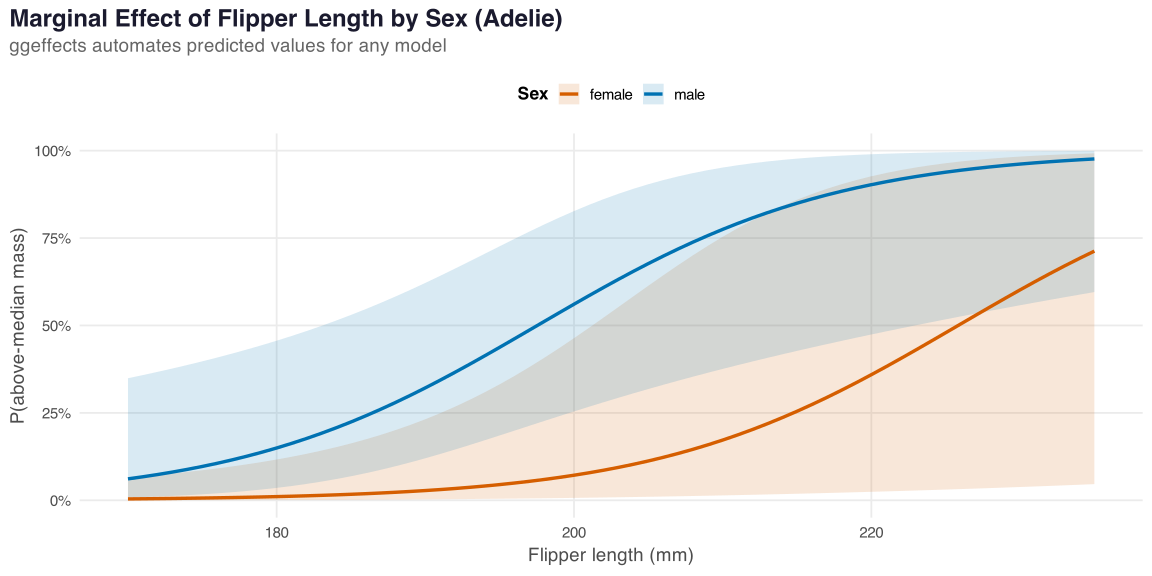
Marginal Effects with ggeffects

The ggeffects package automates predicted value plots for any model class.

library(ggeffects)

# One line to get predicted values
preds <- ggpredict(fit,
  terms = c("flipper_length_mm",
            "sex"))

# Built-in plot method
plot(preds) +
  labs(
    title = "Marginal Effect of Flipper Length by Sex"
  )

# Or extract data for custom ggplot
as.data.frame(preds) |>
  ggplot(aes(x, predicted,
             color = group)) +
  geom_ribbon(...) +
  geom_line(...)
Figure 29

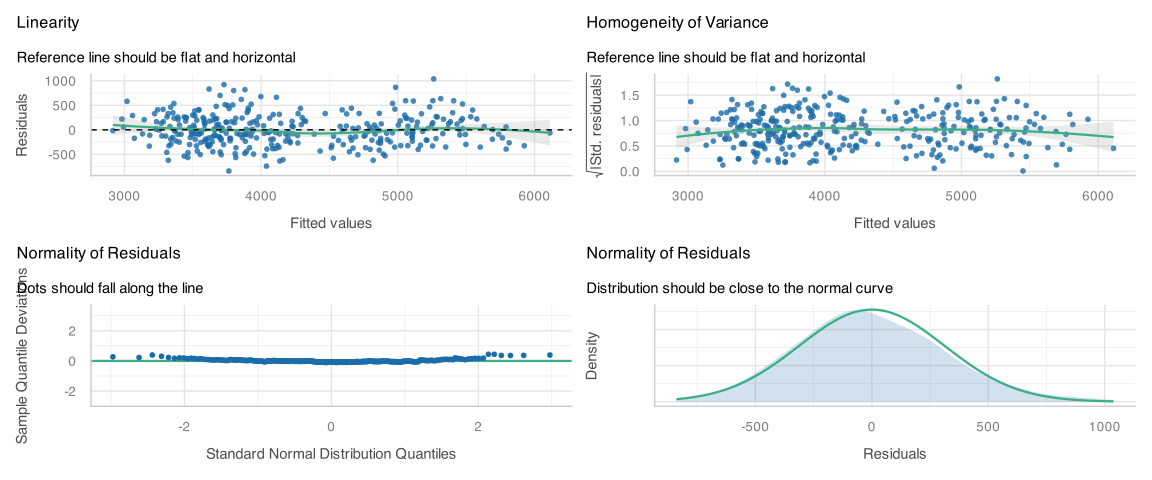
Diagnostic Plots: the performance + see Packages

The performance package (from easystats) provides model diagnostics; see visualizes them with ggplot2.

Show the code
# Fit a linear model for diagnostics demo
lm_fit <- lm(body_mass_g ~ bill_length_mm + bill_depth_mm + flipper_length_mm + species,
             data = drop_na(penguins))

library(performance)
library(see)

check_model(lm_fit, check = c("linearity", "normality", "qq", "homogeneity"))

Figure 30

check_model() replaces the base R plot(model) with a modern, multi-panel diagnostic dashboard. One function call, publication-ready output.

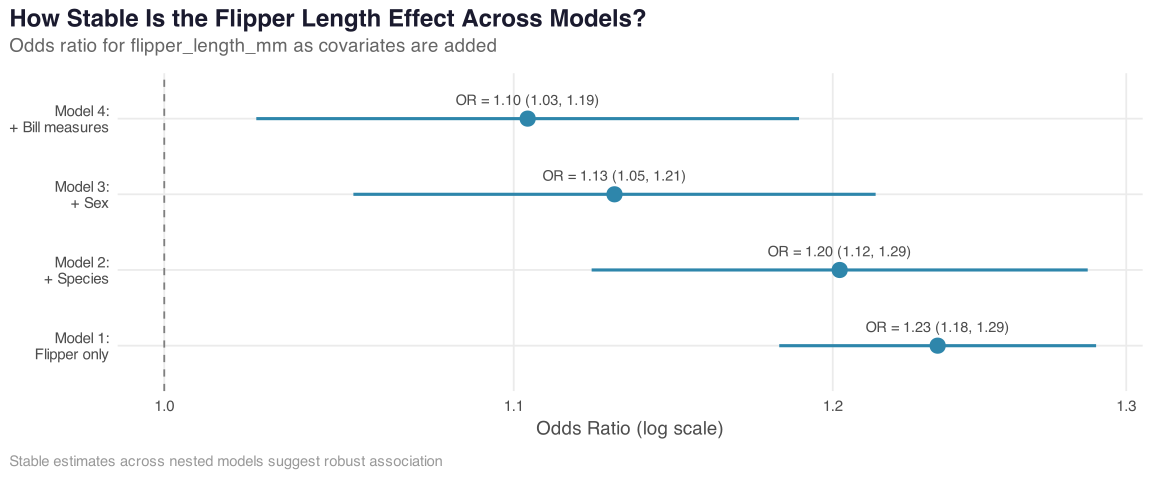
Model Comparison Visualization

When comparing nested or competing models, visualize the fit statistics side by side.

Show the code
# Fit competing models
m1 <- glm(heavy ~ flipper_length_mm, data = model_data, family = binomial)
m2 <- glm(heavy ~ flipper_length_mm + species, data = model_data, family = binomial)
m3 <- glm(heavy ~ flipper_length_mm + species + sex, data = model_data, family = binomial)
m4 <- fit  # full model from earlier

# Helper to get Wald CIs
tidy_wald <- function(mod, label) {
  tidy(mod, exponentiate = TRUE) |>
    mutate(conf.low = exp(log(estimate) - 1.96 * std.error),
           conf.high = exp(log(estimate) + 1.96 * std.error),
           model = label)
}

# Compare coefficients across models
models_tidy <- bind_rows(
  tidy_wald(m1, "Model 1:\nFlipper only"),
  tidy_wald(m2, "Model 2:\n+ Species"),
  tidy_wald(m3, "Model 3:\n+ Sex"),
  tidy_wald(m4, "Model 4:\n+ Bill measures")
) |>
  filter(term == "flipper_length_mm")

ggplot(models_tidy, aes(x = estimate, y = model)) +
  geom_vline(xintercept = 1, linetype = "dashed", color = "grey50") +
  geom_pointrange(aes(xmin = conf.low, xmax = conf.high),
                  color = "#2E86AB", size = 1, linewidth = 1.1) +
  geom_text(aes(label = sprintf("OR = %.2f (%.2f, %.2f)",
                                estimate, conf.low, conf.high)),
            vjust = -1.2, size = 3.8, color = "grey30") +
  scale_x_log10() +
  labs(title = "How Stable Is the Flipper Length Effect Across Models?",
       subtitle = "Odds ratio for flipper_length_mm as covariates are added",
       x = "Odds Ratio (log scale)", y = NULL,
       caption = "Stable estimates across nested models suggest robust association")

Figure 31

The #30DayChartChallenge

Every April, the data visualization community participates in the #30DayChartChallenge: one prompt per day, one chart per day, shared on social media. Created in 2021 by Cedric Scherer and Dominic Roye, inspired by the #30DayMapChallenge.

Why It Matters for You

  • Forces you to try chart types you would never pick (waffle charts, bump charts, slope graphs, treemaps)
  • Builds a public portfolio of your work
  • Exposes you to how the global community solves the same prompt differently
  • Many prompts are epi-relevant: uncertainty, distributions, time series, part-to-whole, relationships

Five Categories (based on “The Graphic Continuum”)

  1. Comparisons (days 1-6)
  2. Distributions (days 7-12)
  3. Relationships (days 13-18)
  4. Time series (days 19-24)
  5. Uncertainties (days 25-30)

Participants choose their own data and tools freely. The 2026 edition is at github.com/30DayChartChallenge/Edition2026.

Techniques You Can Steal

Prompt Chart Type R Package
Part-to-whole Waffle chart waffle
Ranking Bump chart ggbump
Slope Slope chart geom_segment
Circular Polar bar coord_polar()
Uncertainty Gradient intervals ggdist
Relationships Network ggraph + tidygraph
Neo-geometric Voronoi ggforce
Storytelling Annotated timeline ggtext + annotate

Where to Explore

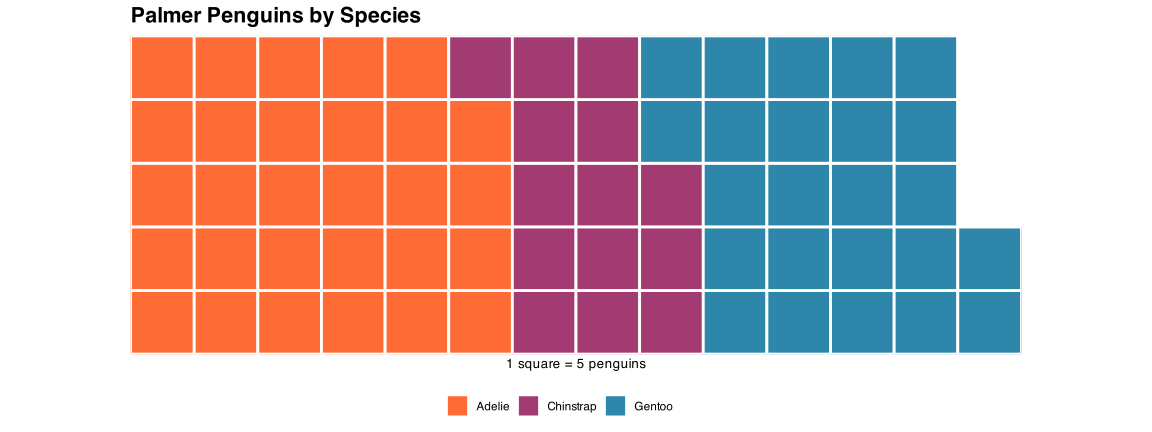
Bonus: Waffle Chart

A waffle chart is a part-to-whole alternative to pie charts, popularized by the #30DayChartChallenge. Each square = 1 unit.

Show the waffle code
library(waffle)

penguin_counts <- penguins |>
  drop_na() |>
  count(species) |>
  mutate(n_scaled = round(n / 5))  # each square = 5 penguins

waffle(
  c("Adelie" = penguin_counts$n_scaled[1],
    "Chinstrap" = penguin_counts$n_scaled[2],
    "Gentoo" = penguin_counts$n_scaled[3]),
  rows = 5,
  size = 1,
  colors = c("#FF6B35", "#A23B72", "#2E86AB"),
  title = "Palmer Penguins by Species",
  xlab = "1 square = 5 penguins"
) +
  theme(plot.title = element_text(face = "bold", size = 16),
        legend.position = "bottom")

Figure 32

Challenge for you: pick a prompt from the #30DayChartChallenge and create a chart using a dataset from this semester. Share it!

Lecture Summary

  • Build plots in layers
  • Show raw data whenever possible
  • Use uncertainty displays, not just point estimates
  • Prefer position over area for comparison
  • Make titles state the conclusion
  • Use colorblind-safe palettes by default
  • Direct-label when the audience benefits
  • Remove nonessential visual clutter
  • Visualize models, do not just tabulate them
  • Iterate until the story is obvious

References

Books

  • Healy, K. (2018). Data Visualization: A Practical Introduction. socviz.co
  • Wilke, C. O. (2019). Fundamentals of Data Visualization. clauswilke.com/dataviz
  • Wickham, H. (2016). ggplot2: Elegant Graphics for Data Analysis. ggplot2-book.org

Foundational

  • Tufte, E. (2001). The Visual Display of Quantitative Information (2nd ed.)
  • Cleveland, W. S., & McGill, R. (1984). Graphical perception. JASA, 79(387), 531-554.

Online Resources

Next Lecture (April 28)

Course Review: putting the entire semester together.

Thank You

EPI 553 | University at Albany