AI-Assisted Statistical Analysis in Graduate Epidemiology Education

Integrating Claude with RStudio for Teaching Regression Methods

March 6, 2026

What if your students had a 24/7 AI teaching assistant
that understood their data, their code, and their questions?

Today we’ll see exactly how that works.

Workshop Roadmap

📋

Context · 15 min

The teaching challenge & how AI fits in

💻

Live Demo · 45 min

Coding, analysis, visualization & debugging

💬

Discussion · 15 min

Implementation, integrity & Q&A

Who Is This For?

Educators

Teaching quantitative methods

Students

Learning R & statistics

Researchers

Working with data

Anyone

Curious about AI + analysis

No assumptions about: R experience · Statistics background · Epidemiology knowledge

The Teaching Challenge

The Problem

  • Syntax frustration overshadows statistical thinking
  • Limited support outside office hours
  • Steep learning curve for R
  • Debugging takes all the time

The Goal

  • Focus on interpretation, not syntax
  • On-demand, contextual guidance
  • Iterative, scaffolded learning
  • Students become analytical thinkers

AI bridges this gap — Students get instant, context-aware help so they can focus on understanding, not debugging.

Office hours at 2am? Not ideal. Claude at 2am? Always available, never annoyed.

TL;DR

“Students drown in syntax.
AI throws them a life raft.”

Three Ways to Use Claude + RStudio

Claude Chat

Copy code & output from RStudio, paste into Claude Desktop App

Most accessible

ClaudeR

ClaudeR connects RStudio to Claude — Claude sees your data and assists in real time

Today’s focus

Claude Code

Full AI agent in the terminal — autonomous coding & execution

Most powerful

Today’s focus: Demonstrating AI-assisted statistical analysis workflows using ClaudeR + Claude Desktop App

📎 Setup instructions in the appendix (slides 51–56)

Claude Chat: Interpreting Output

The simplest workflow — no setup needed

  1. Run your analysis in RStudio
  2. Copy the output from the console
  3. Paste into Claude and ask a question

. . .

Works today: All you need is claude.ai — free tier is enough to get started.

👤 “I ran this regression in R. Can you explain the output?”

Coefficients:
             Estimate Std. Error t value Pr(>|t|)
(Intercept) 101.4821   2.1538   47.12  < 2e-16 ***
Age           0.3048   0.0275   11.09  < 2e-16 ***
Gendermale    4.8215   0.9012    5.35  1.1e-07 ***

🤖 “This tells you that for each additional year of age, systolic blood pressure increases by about 0.3 mmHg, holding other variables constant. Males have BP about 4.8 mmHg higher than females on average…”

Claude Chat: Debugging Errors

When something breaks — Claude explains why

Students often get stuck on cryptic R errors. Copy-pasting into Claude gets instant, clear explanations.

. . .

Why this works: Claude can recognize common R errors and suggest fixes without needing to see your full environment. Perfect for beginners.

👤 “I’m getting this error in R:”

Error in ggplot(data, aes(x = age, y = bp)) :
  could not find function "ggplot"

🤖 “You need to load the ggplot2 package first. Add this line before your plot code:”

library(ggplot2)  # or library(tidyverse)

ClaudeR: RStudio Meets Claude Desktop

What it does: Connects RStudio directly to Claude Desktop app

  • Claude can see your loaded data and R environment
  • Chat in Claude Desktop, run code in RStudio
  • Perfect for students new to AI workflows

. . .

Install: devtools::install_github(“IMNMV/ClaudeR”)
GitHub: github.com/IMNMV/ClaudeR

# Start ClaudeR connection
library(ClaudeR)
claudeAddin()

# Now Claude can see your data!
# Ask questions directly
# Get help with analysis

. . .

👤 “I have NHANES loaded. Help me summarize systolic blood pressure?”

🤖 “I can see NHANES in your environment. Let me help…”

ClaudeR in Action — You Ask, Claude Codes

You type a plain-English request
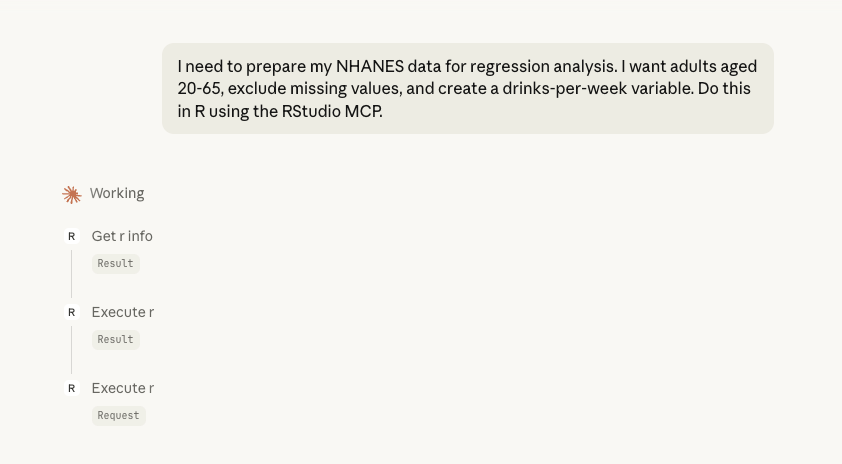
Student prompts Claude → Claude calls RStudio tools

Claude writes & runs the code in RStudio
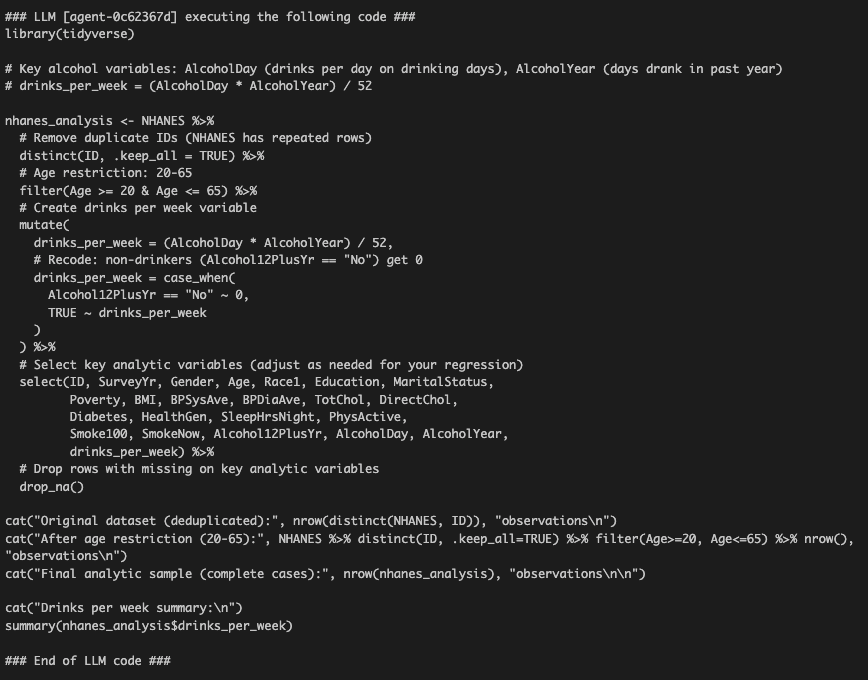
Real R code executed live in your RStudio session

ClaudeR in Action — The Results
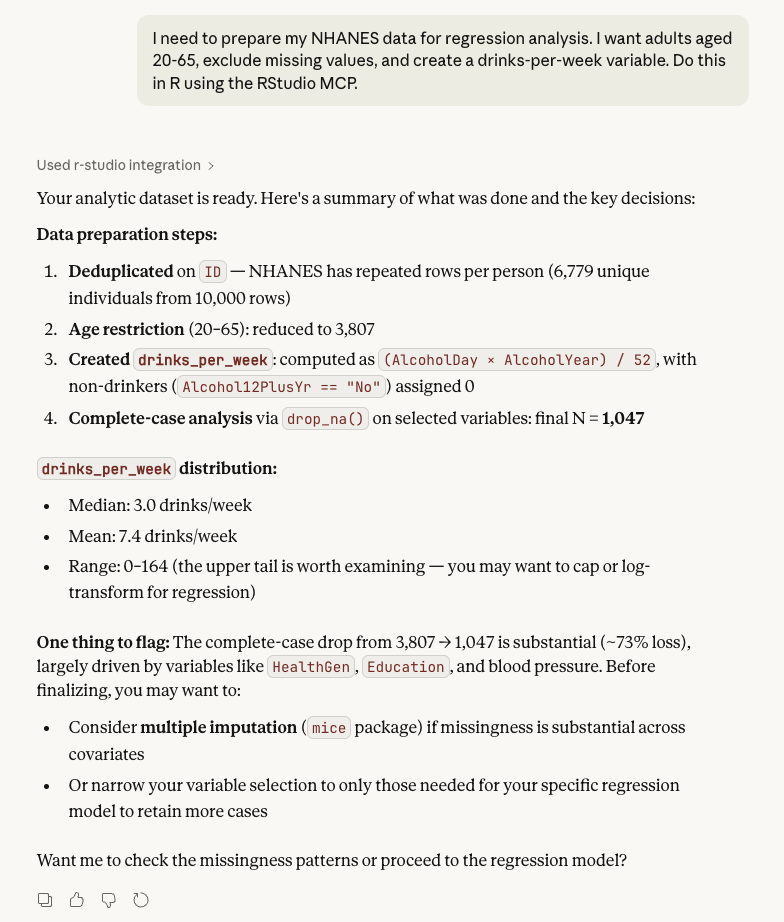
Data prep steps, variable summaries, flags, and next-step suggestions — all from one prompt

ClaudeR vs Claude Code

🎓

ClaudeR

Learning mode

› Student sees every step Claude takes
› Claude explains why, not just what
› Builds understanding through collaboration
› Student stays in the driver’s seat

Best for learning

Claude Code

Production mode

› Claude runs R autonomously in the terminal
› Writes, executes, and debugs code hands-off
› Best for experienced users with clear tasks
› Optimized for speed, not teaching

Best for efficiency

Start with ClaudeR to learnGraduate to Code when ready

TL;DR

“Chat → ClaudeR → Claude Code.
Start simple, level up when ready.”

Let’s See It in Action

Coding · Analysis · Visualization · Debugging

Workshop Materials

Everything is on GitHub

  • 📂 Slides & source code
  • 📊 Sample datasets
  • 📖 Quick-start guide

github.com/muntasirmasum/ai-epi-workshop

Try It Yourself — No Installation Needed

Scan or visit the link

Run everything from today in your browser:

1. Go to posit.cloud/content/12007732
2. Sign up for a free account (or log in)
3. Click “Save a Permanent Copy” (saves your own editable copy)
4. Open workshop-demo.Rmd and start running code!

. . .

What’s included: R + RStudio in the cloud, NHANES data, all packages pre-installed, the complete analysis script, deliberate bugs to debug with Claude, and challenges to try on your own.

💡 If you’d like a local setup, install R and RStudio Desktop — both are free.

Today’s Research Question

Does alcohol consumption predict blood pressure?

Dataset: NHANES 2017-2018 · Outcome: Systolic BP (mmHg) · Exposure: Alcohol drinks/week

Coding Analysis Visualization Debugging

Student Question: Coding

I need to prepare my NHANES data for regression analysis. I want adults aged 20-65, exclude missing values, and create a drinks-per-week variable. How do I do this in R?

Claude’s approach: Filter age range → Select variables → Handle missing data → Create derived variables

Claude Suggests the Code — Step by Step

Steps 1–2: Filter & create variables
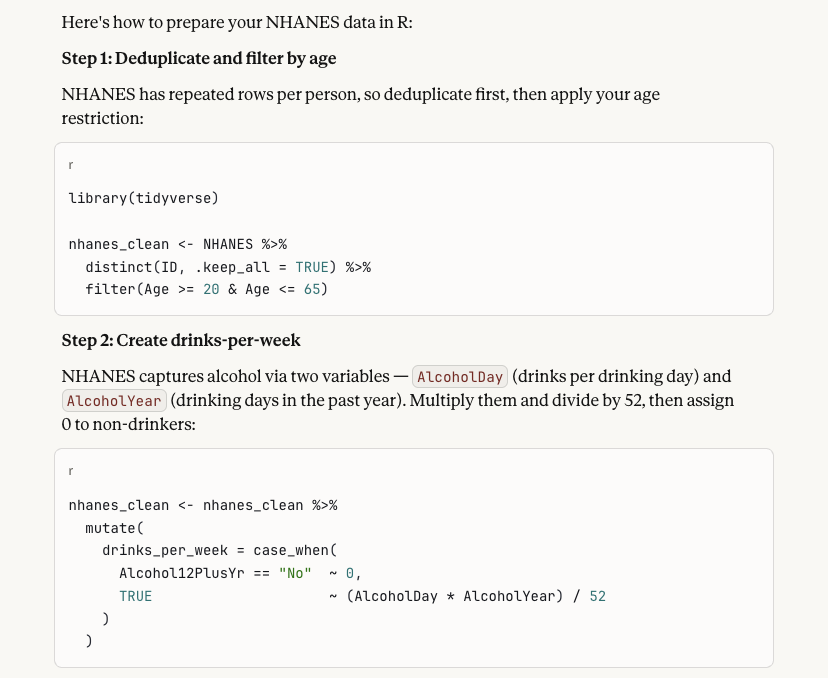
Deduplicate, filter by age, create drinks-per-week

Steps 3–4: Select columns & check sample
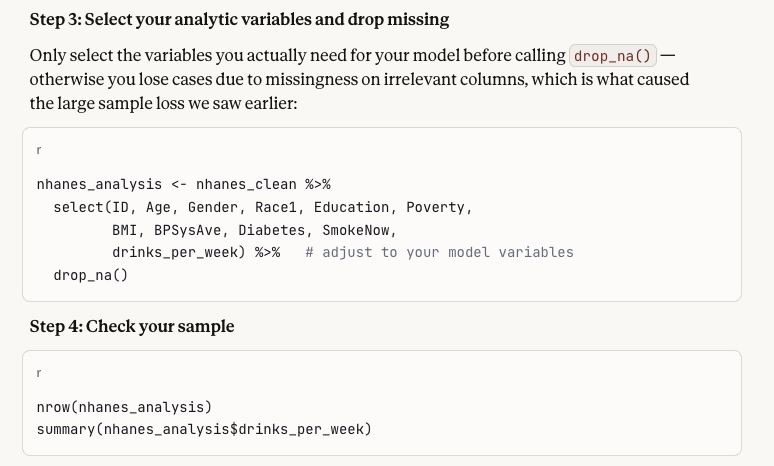
Select analytic variables, drop missing, check sample size

💡 Students can copy this code directly into RStudio and run it to analyze the data themselves.

Claude Flags What to Watch For
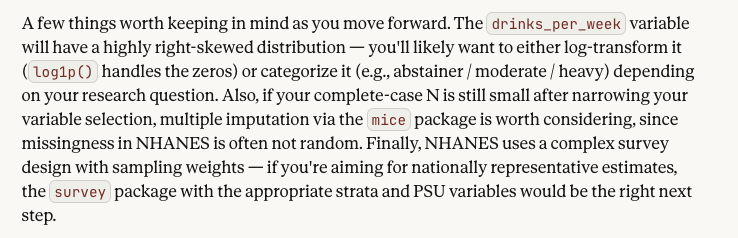
Claude proactively warns about skewness, missing data patterns, and survey design — a tutor, not just a code generator

What the Code Looks Like in RStudio

Claude suggests: Use filter() for age range, mutate() for new variables, and handle missing data explicitly

data("NHANES")                                    # Load built-in dataset

analysis_data <- NHANES %>%
  filter(Age >= 20, Age <= 65) %>%                 # Adults only
  filter(!is.na(BPSysAve), !is.na(AlcoholDay),    # Drop missing values
         !is.na(BMI), !is.na(SmokeNow),
         !is.na(Gender)) %>%
  mutate(
    drinks_per_week = AlcoholDay * 7,              # Approx. weekly intake
    current_smoker = ifelse(SmokeNow == "Yes", 1, 0),  # Binary coding
    drink_category = cut(AlcoholDay * 7,           # Categorize drinkers
      breaks = c(-Inf, 0, 7, 14, Inf),
      labels = c("None", "Light", "Moderate", "Heavy"))
  ) %>%
  select(ID, Gender, Age, BMI, drinks_per_week,    # Keep key variables
         drink_category, current_smoker, BPSysAve) %>%
  distinct(ID, .keep_all = TRUE)                   # Remove duplicates

Pro Tip: glimpse() gives you a better overview than str() for tidy data

Note: AlcoholDay measures drinks on drinking days, not daily average — multiplying by 7 is a rough proxy for weekly intake, used here for demonstration purposes.

A Look at the Data

glimpse(analysis_data)
Rows: 1,174
Columns: 8
$ ID              <int> 51630, 51677, 51678, 51691, 51715, 51723, 51732, 51734…
$ Gender          <fct> female, male, male, female, male, male, male, male, fe…
$ Age             <int> 49, 33, 60, 57, 49, 28, 32, 25, 21, 27, 26, 30, 58, 35…
$ BMI             <dbl> 30.57, 28.54, 25.84, 20.66, 29.13, 25.45, 20.15, 27.06…
$ drinks_per_week <dbl> 14, 21, 42, 7, 42, 21, 84, 35, 21, 49, 49, 7, 28, 7, 7…
$ drink_category  <fct> Moderate, Heavy, Heavy, Light, Heavy, Heavy, Heavy, He…
$ current_smoker  <dbl> 1, 0, 0, 0, 1, 1, 1, 1, 1, 1, 1, 1, 1, 0, 0, 1, 1, 1, …
$ BPSysAve        <int> 112, 128, 152, 122, 122, 93, 124, 117, 120, 110, 99, 1…

Student Question: Analysis

I need to run a multiple regression with blood pressure as outcome and alcohol, age, BMI, smoking, and sex as predictors. How do I interpret the results?

Fitting the Model

Claude explains: Use lm() for linear regression. Formula syntax: outcome ~ predictor1 + predictor2 + …

# Fit multiple linear regression
model1 <- lm(
  BPSysAve ~ drinks_per_week + Age + BMI +        # Outcome ~ predictors
              current_smoker + Gender,
  data = analysis_data                             # Use cleaned dataset
)

summary(model1)                                    # View full results
Term Estimate SE Statistic p-value CI Low CI High
(Intercept) 92.120 2.499 36.868 0.000 87.217 97.022
drinks_per_week 0.014 0.016 0.864 0.388 -0.018 0.046
Age 0.377 0.033 11.390 0.000 0.312 0.442
BMI 0.236 0.064 3.692 0.000 0.110 0.361
current_smoker 1.293 0.871 1.485 0.138 -0.415 3.001
Gendermale 6.704 0.864 7.758 0.000 5.008 8.400

Claude Tip: Always tell Claude your research question — it gives better, more contextual code suggestions

Interpreting the Results

Coefficient for alcohol:

coef(model1)["drinks_per_week"]
drinks_per_week 
      0.0139695 

Each additional drink per week is associated with a 0.014 mmHg change in systolic BP, holding other factors constant.

P-value:

summary(model1)$coefficients["drinks_per_week", "Pr(>|t|)"]
[1] 0.3879358

Claude guides the student: “What does this p-value tell us? Is this effect size clinically meaningful for public health interventions?”

TL;DR

“You ask the question. Claude writes the code.
You interpret the answer.”

Telling the Story with Data

Visualization that communicates

Student Question: Visualization

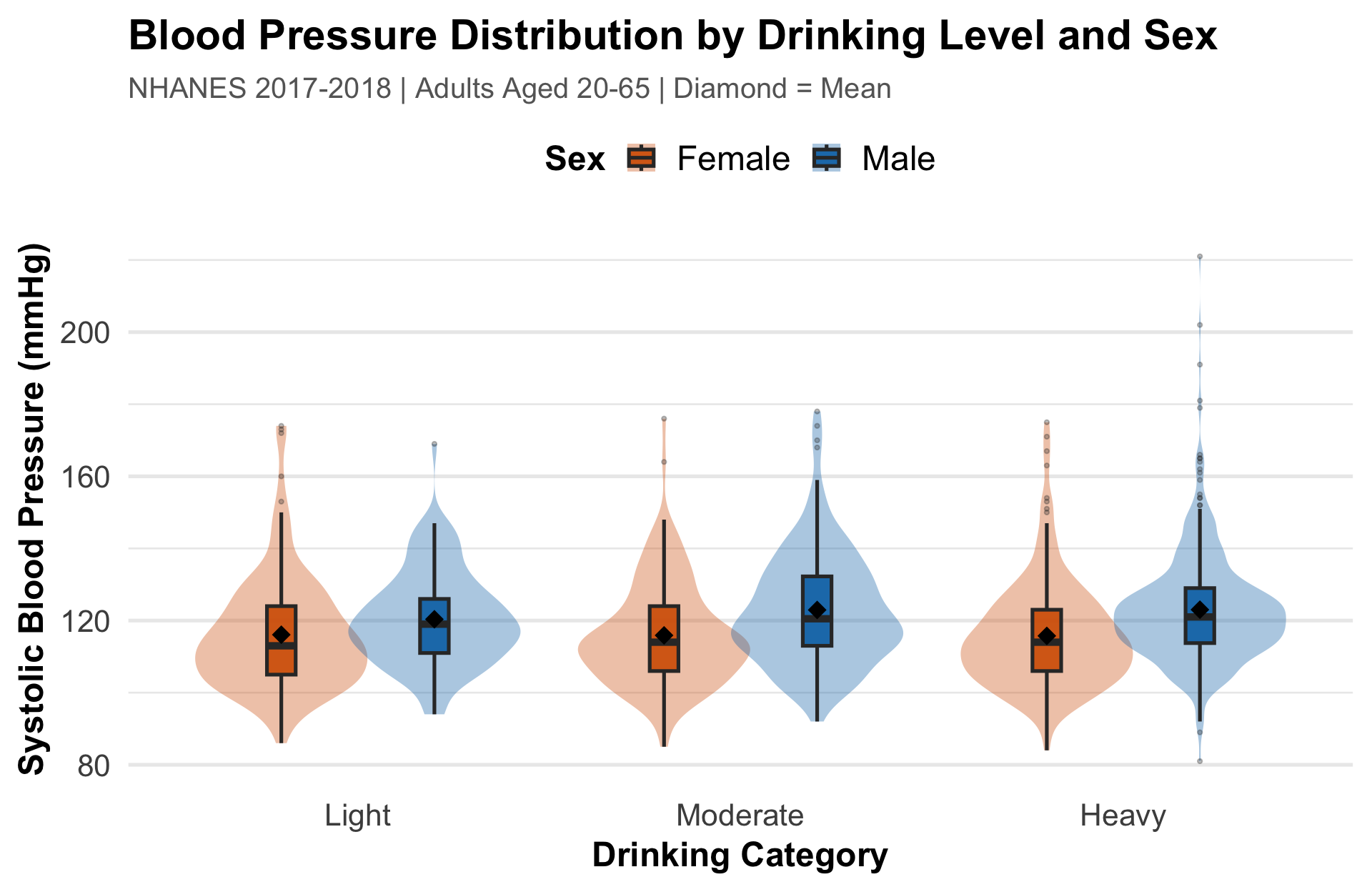
I want to visualize the relationship between alcohol consumption and blood pressure, accounting for sex differences. What’s the best plot?

Claude suggests: A violin plot with overlaid box plots — shows the full distribution shape, grouped by drinking level and colored by sex

Building the Plot

p <- ggplot(analysis_data, aes(x = drink_category, y = BPSysAve,
                                fill = Gender)) +
  geom_violin(alpha = 0.4, position = position_dodge(0.8)) +
  geom_boxplot(width = 0.15, alpha = 0.8,
               position = position_dodge(0.8), outlier.size = 0.5) +
  labs(
    title = "Blood Pressure by Drinking Level and Sex",
    subtitle = "NHANES 2017-2018, Adults 20-65",
    x = "Drinking Category", y = "Systolic BP (mmHg)",
    fill = "Sex"
  ) +
  scale_fill_manual(values = c("female" = "#D55E00",
                                "male" = "#0072B2")) +
  theme_minimal(base_size = 20)

ggplot Tip: Violin + box plot combo shows both distribution shape and summary statistics — far more informative than a bar chart

Visualization Output

Takeaway Males consistently show higher blood pressure than females across all drinking levels. Heavy drinkers show the widest spread — highly variable outcomes.

Data Distributions
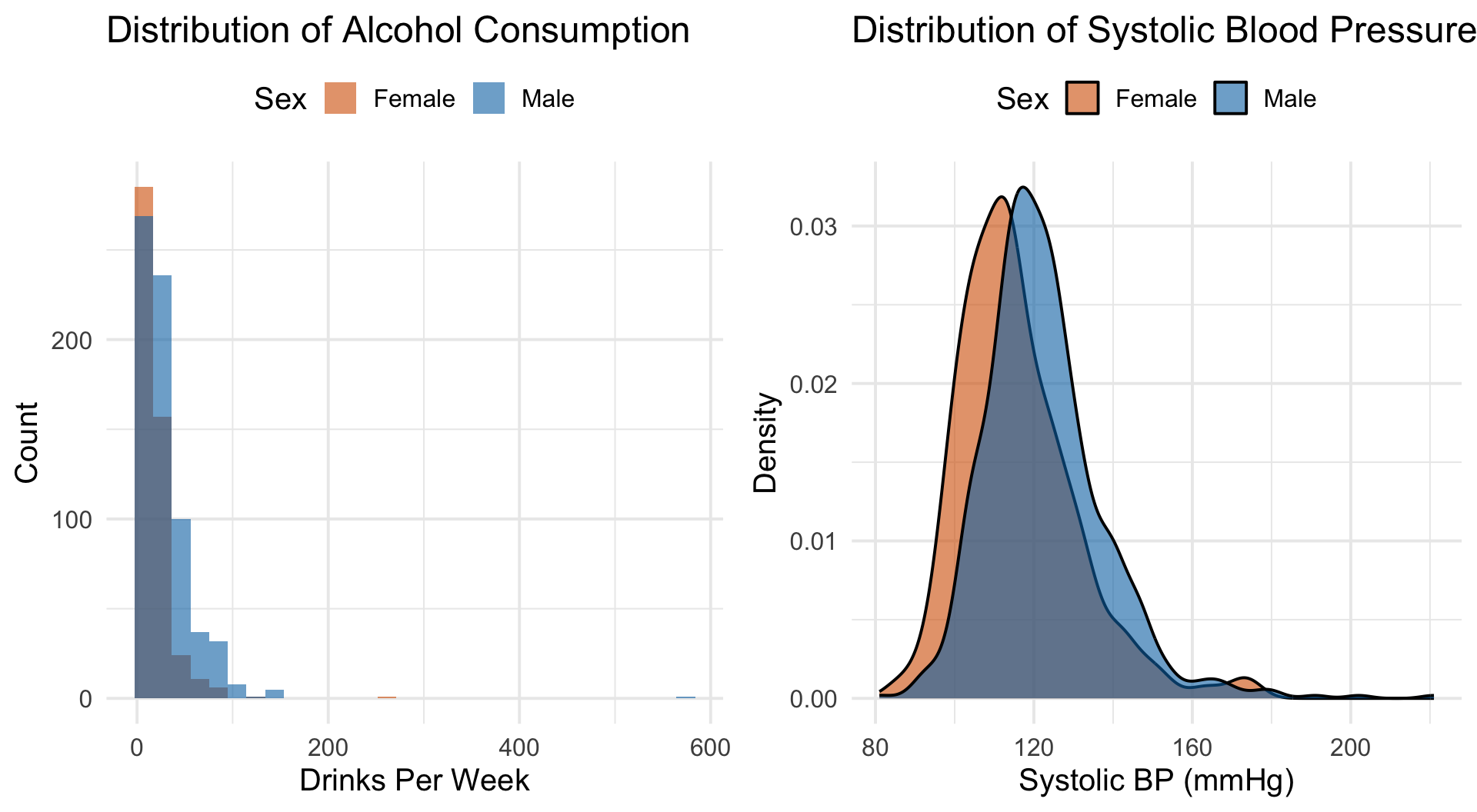
Takeaway Alcohol consumption is heavily right-skewed — most people drink moderately, a few drink a lot. Blood pressure is roughly normal but shifted higher in males.

Correlation Matrix
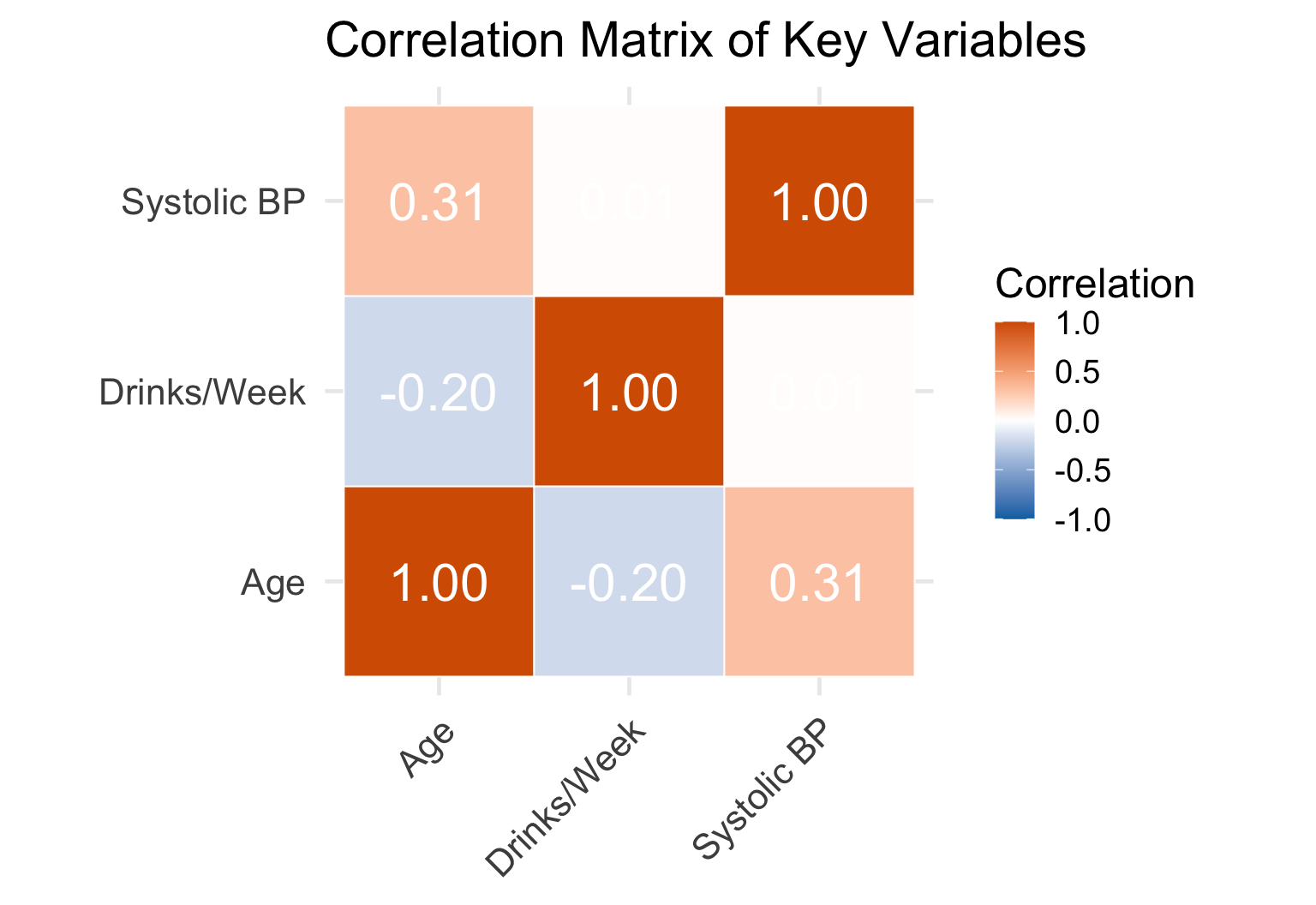
Takeaway Age has the strongest correlation with blood pressure (r ≈ 0.30). Alcohol shows a weak positive correlation — suggesting confounders matter more than drinking alone.

Coefficient Plot
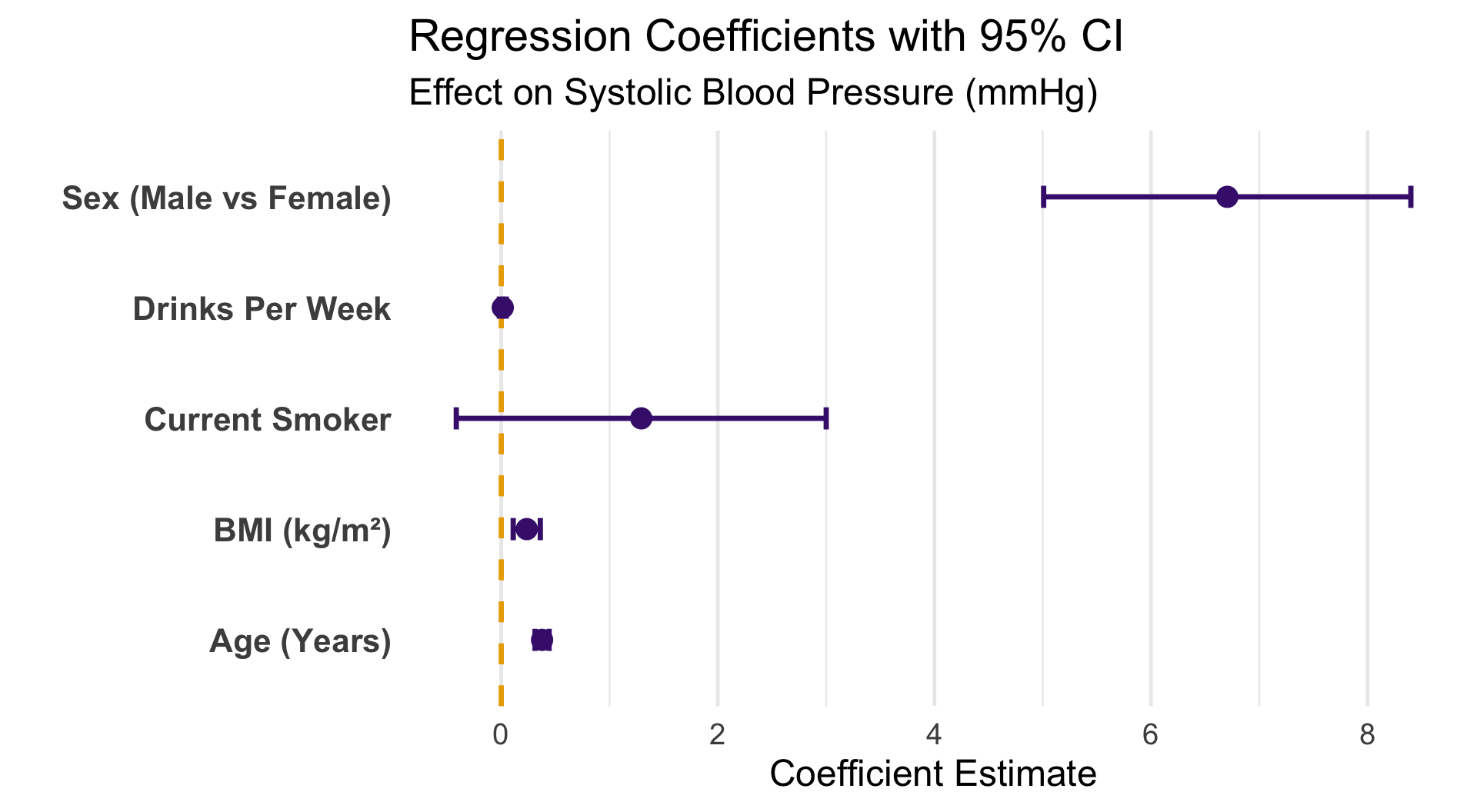
Takeaway Age and Sex (male) are the strongest predictors of blood pressure. Alcohol has a small but significant positive effect. Confidence intervals not crossing zero = statistically significant.

Model Diagnostics
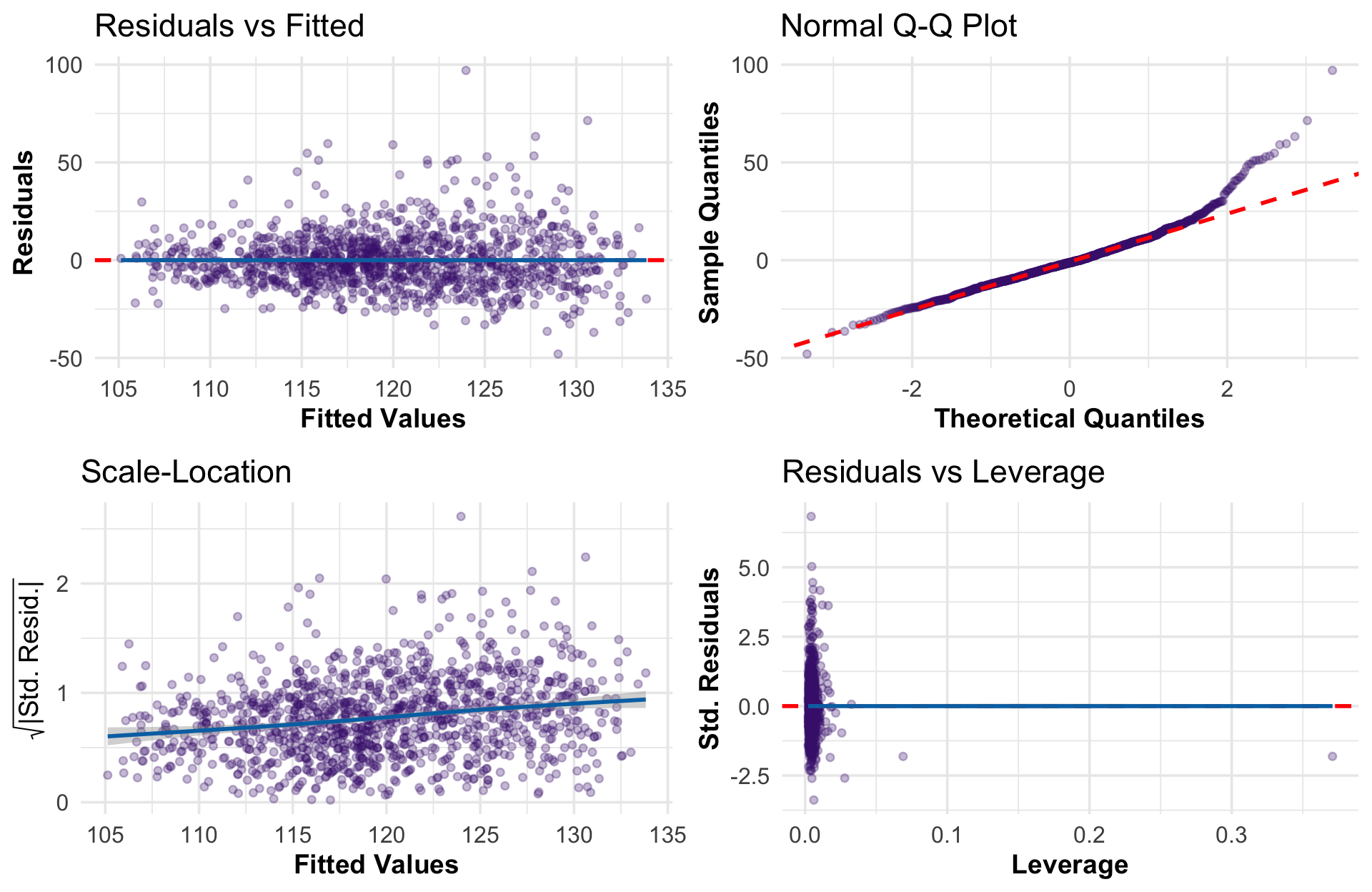
Takeaway Residuals look reasonably normal with no major pattern violations. The model assumptions are adequately met for inference.

Model Comparison
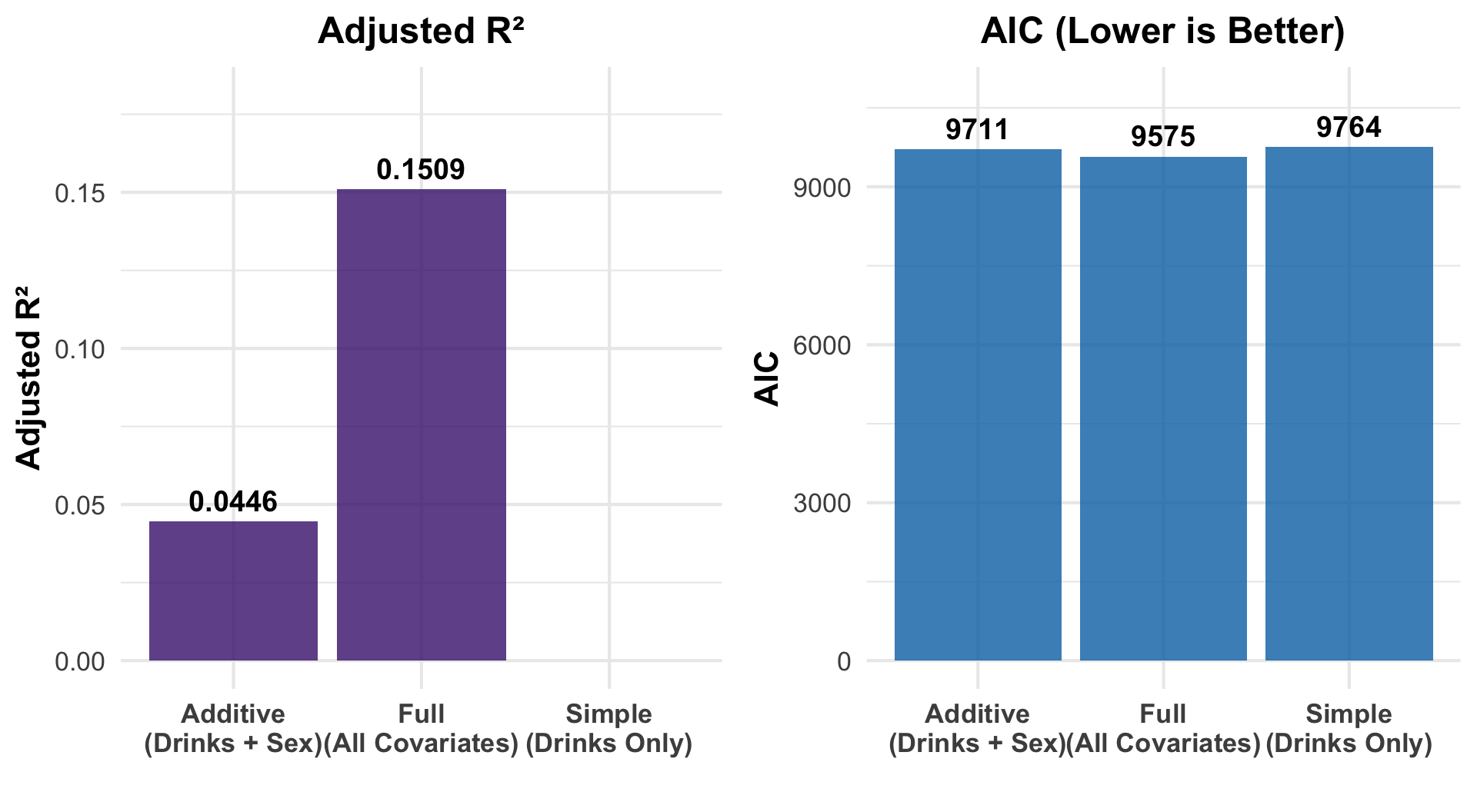
Takeaway Adding covariates dramatically improves fit. The full model (R² ≈ 0.15) explains far more than alcohol alone — age and sex are key confounders.

Predicted Effects
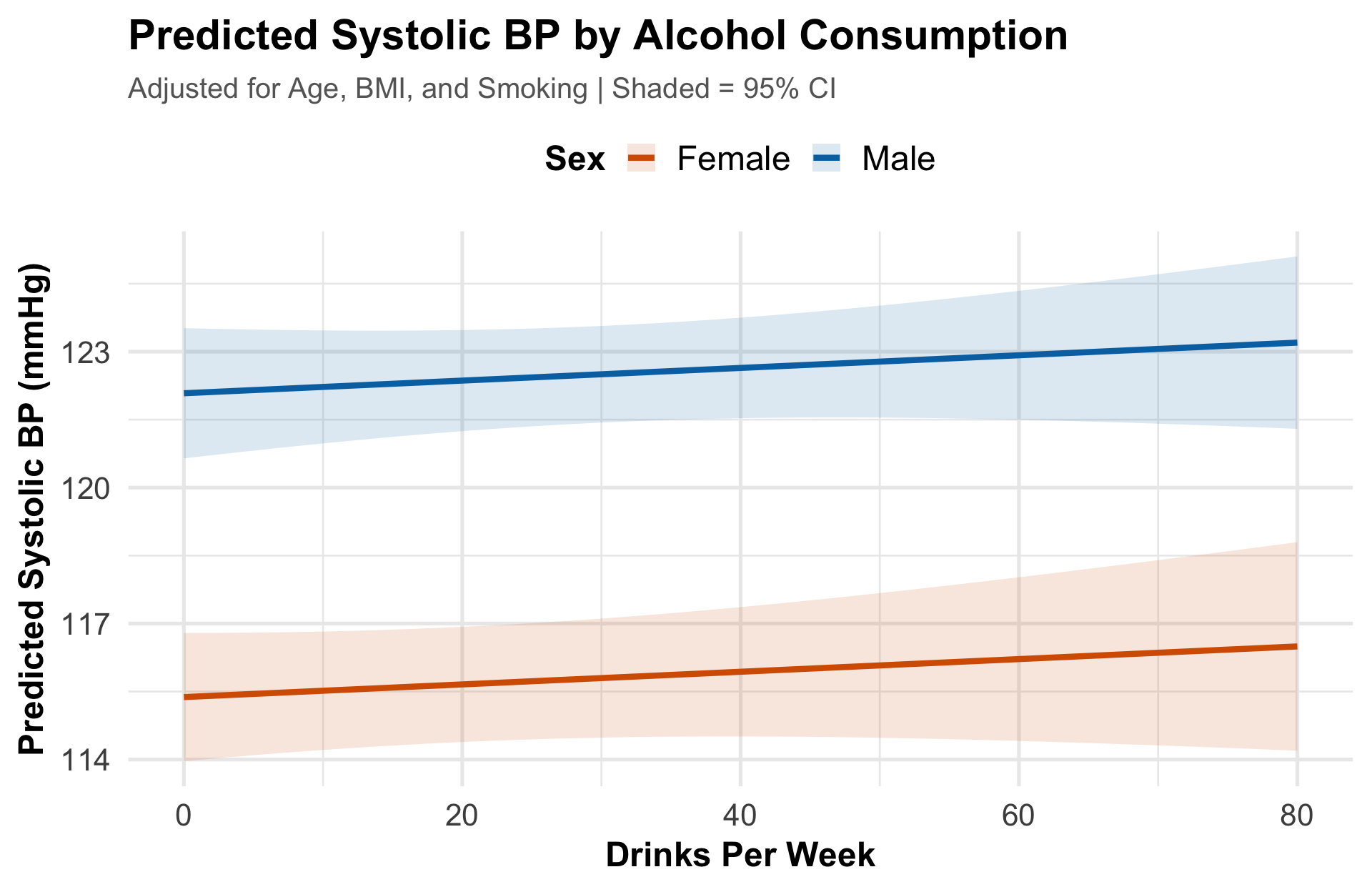
Takeaway After adjusting for confounders, blood pressure rises modestly with drinking — but males start ~5 mmHg higher at every level. The widening CI at high intake reflects fewer observations.

TL;DR

“One research question, six visualizations,
zero StackOverflow.”

Student Question: Debugging

I’m getting errors when I try to run my regression. Can you help me figure out what’s wrong?

Common errors students encounter:

Error: could not find function "ggplot"        # Missing package
Error: object 'drinks_perweek' not found       # Typo in variable name
Error in lm.fit(x, y, ...)                     # Formula syntax error

Claude’s diagnostic process: Identify the error → Explain why it happened → Suggest the fix → Teach the pattern so it doesn’t happen again

Debug Tip: Run ls() to see your environment — check if the variable exists before panicking!

Every R programmer has rage-quit over a missing comma at least once. Claude doesn’t judge.

Bug #1: The Case-Sensitive Typo

The error:
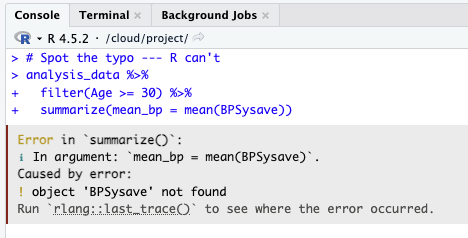
BPSysave — object not found

Claude’s fix:
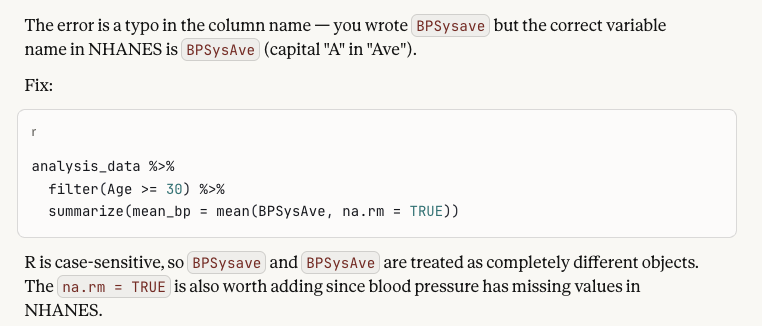
BPSysAve — capital “A” matters + adds na.rm = TRUE

Bug #2: Assignment vs. Comparison

The error:
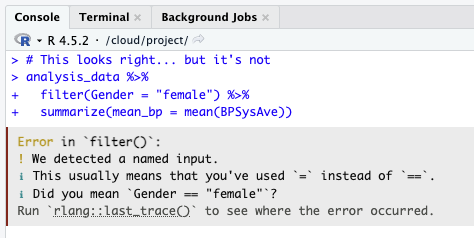
filter(Gender = “female”) — used = instead of ==

Claude’s fix:
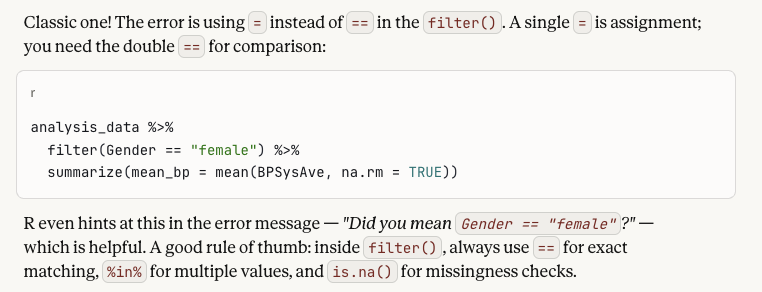
== for comparison — plus tips on %in% and is.na()

Bug #3: The Missing Pipe

The error:
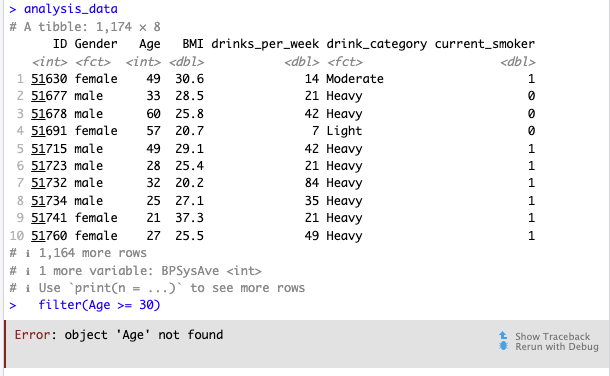
filter(Age >= 30) standalone — R can’t find Age

Claude’s fix:
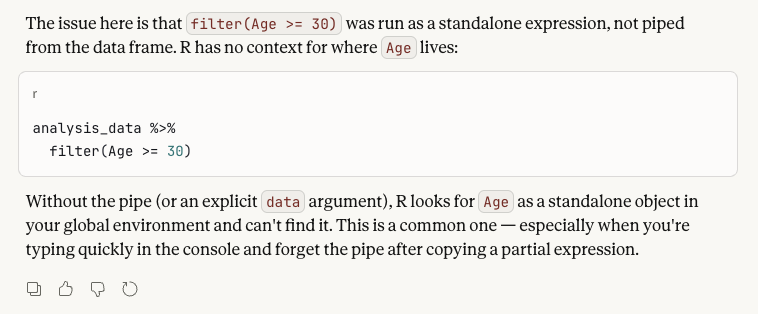
✅ Pipe from data frame: analysis_data %>% filter(Age >= 30)

TL;DR

“Errors aren’t roadblocks —
they’re teaching moments.”

Bringing It All Together

Integrity, implementation & discussion

AI Guardrails — When Code Runs but Results Are Wrong

🔇

Silent Errors

Code runs without errors but uses the wrong test, drops missing data unexpectedly, or picks the wrong reference group — no error message to warn you

🎭

Confident but Wrong

AI can confidently interpret a coefficient as “for every 1-unit increase…” when the variable is actually categorical or coded differently

🧩

Context Blindness

AI doesn’t know your study design — it may suggest methods that ignore clustering, confounders, or data structure that domain expertise would catch

🔬

Always Verify

Check output against expectations. Do effect sizes make sense? Does the sample size match? AI catches syntax errors — only you catch analytic errors

The rule: AI is a powerful co-pilot, but you are always the principal investigator

Academic Integrity — Ground Rules

AI Use Is Allowed

Students may use Claude, ChatGPT, and other AI tools for coding assistance and concept explanation

📝

Always Cite AI

Every assignment must disclose which AI tools were used and how they contributed to the work

🧠

Understand Your Code

Students must be able to explain every line — no copy-paste-only submissions accepted

The goal: AI helps you learn faster, not skip learning

Academic Integrity — Assessment Design

⏱️

Timed Assessments

In-class exams without AI access test whether students internalized concepts — not whether they can prompt well

🔍

Interpretation Over Syntax

Questions focus on what does this output mean? and why did you choose this method? — not memorizing functions

💬

Code Annotations

Students add inline comments explaining each analysis step — demonstrates comprehension beyond surface-level prompting

📓

Learning Reflections

Short essays on what AI helped with, where it struggled, and what the student learned independently

Discussion

What we’ve seen today:

✅ AI lowers barriers to statistical computing

✅ Students focus on thinking, not syntax

✅ Scaffolded learning builds independence

✅ Works across disciplines and skill levels

Let’s discuss:

1 What challenges do you face teaching quantitative methods?

2 How might AI integration work in your context?

3 What concerns do you have?

4 What would help you get started?

Resources

Workshop Materials

Tools & Resources

YouTube Tutorials to Explore

Thank You!


Questions?


Muntasir Masum, PhD

Department of Epidemiology & Biostatistics

College of Integrated Health Sciences

University at Albany, SUNY

📧 mmasum@albany.edu
linkedin.com/in/muntasirmasum
@muntasirm.bsky.social
github.com/muntasirmasum

Setting Up Your Kitchen Before You Cook

Because you can’t make a regression without cracking a few installs

Setup 1: Claude Chat (Ready in 30 Seconds)

The Zero-Install Option

Step 1: Go to claude.ai
Step 2: Create a free account
Step 3: Start pasting your R output

That’s it. Seriously.

Best For

› Quick questions about R output
› Debugging error messages
› “What does this p-value mean?”
› Students who have never used AI before

No R packages, no terminal, no configuration.

Setup 2: ClaudeR

Step 1: Install R prerequisites

# Install ClaudeR from GitHub
install.packages("devtools")
devtools::install_github("IMNMV/ClaudeR")

. . .

Step 2: Install Claude Desktop App

Download from claude.ai/download (macOS or Windows)

Step 3: Connect RStudio to Claude

library(ClaudeR)
claudeAddin()   # Opens the connection

. . .

Step 4: Enable ClaudeR mode in Claude Desktop

  1. Open Claude Desktop App
  2. Settings → Developer → Enable MCP
  3. ClaudeR auto-configures the connection

Verify it works: Load a dataset in RStudio, then ask Claude Desktop: “What data do I have loaded?” — if it answers correctly, you’re connected!   |   Troubleshooting: Restart both RStudio and Claude Desktop if connection fails.

Setup 3: Claude Code — Install

Step 1: Install Node.js

# macOS
brew install node
# Windows
winget install OpenJS.NodeJS
# Verify
node --version  # v18+

Step 2: Install Claude Code

npm install -g @anthropic-ai/claude-code

. . .

Note: Claude Code requires a paid Anthropic API plan. Start with Claude Chat if you’re exploring.

Setup 3: Claude Code — Authenticate & Use

Step 3: Authenticate

# Launch — opens browser to log in
claude

Step 4: Start using with R

cd ~/my-r-project
claude

# Then ask Claude:
> "Load NHANES data and run a
   regression of BP on alcohol"

Quick Reference: Which Setup Is Right for You?

💬

Claude Chat

Time: 30 seconds
Cost: Free
Skill: Any level
Best for: Quick Q&A

🤝

ClaudeR

Time: 10 minutes
Cost: Free (Claude Desktop)
Skill: Beginner+
Best for: Learning & analysis

Claude Code

Time: 15 minutes
Cost: Paid API plan
Skill: Intermediate+
Best for: Autonomous workflows

My recommendation: Start with Claude Chat today, try ClaudeR if you want more assistance, explore Claude Code when you’re ready.

Anticipated Questions

Things you’re probably already thinking

🎓 Won’t students just let AI do all the work?

Short answer: Not with ClaudeR.

ClaudeR is a tutor, not an autopilot. Students still choose the variables, interpret the output, and explain the results. Claude explains why code works — it doesn’t just hand over answers. The learning happens in the conversation, not the copy-paste.

→ See how this works in practice: Analysis demo · Debugging demo

🔒 Is student data safe? Does Claude store it?

Privacy by default.

Claude does not train on user conversations. In our demo, we use publicly available NHANES data — no student PII involved. For courses handling sensitive data, Anthropic offers enterprise plans with additional compliance.

Always check your institution’s data governance policy.

💰 How much does this actually cost?

Free to start, affordable to scale.

Claude Chat: Free tier at claude.ai
ClaudeR: Free (Claude Desktop App)
Claude Code: Paid API (~$5–20/month)

Most students can do everything on the free tier. No paywall for learning.

Compare all three options · Setup instructions

📚 Does this work outside epidemiology?

Absolutely — any discipline that uses data.

The workflow generalizes to any R-based analysis: sociology, psychology, economics, political science, ecology, business analytics. Claude adapts to the domain — you just change the dataset and research question. The pedagogy stays the same.

⚖️ How do you handle academic integrity?

Set the policy before the semester starts.

We treat AI like a calculator — permitted and expected, but you must show your reasoning. Students submit annotated code explaining each decision. The assessment shifts from “Did you get the right answer?” to “Do you understand what you did and why?”

🚀 How do I get started in my own course?

Three steps, starting today.

1. Try Claude Chat yourself — paste some output and ask questions
2. Add one AI-assisted assignment to an existing course
3. Share the workshop materials with your students

Full setup guide in the appendix